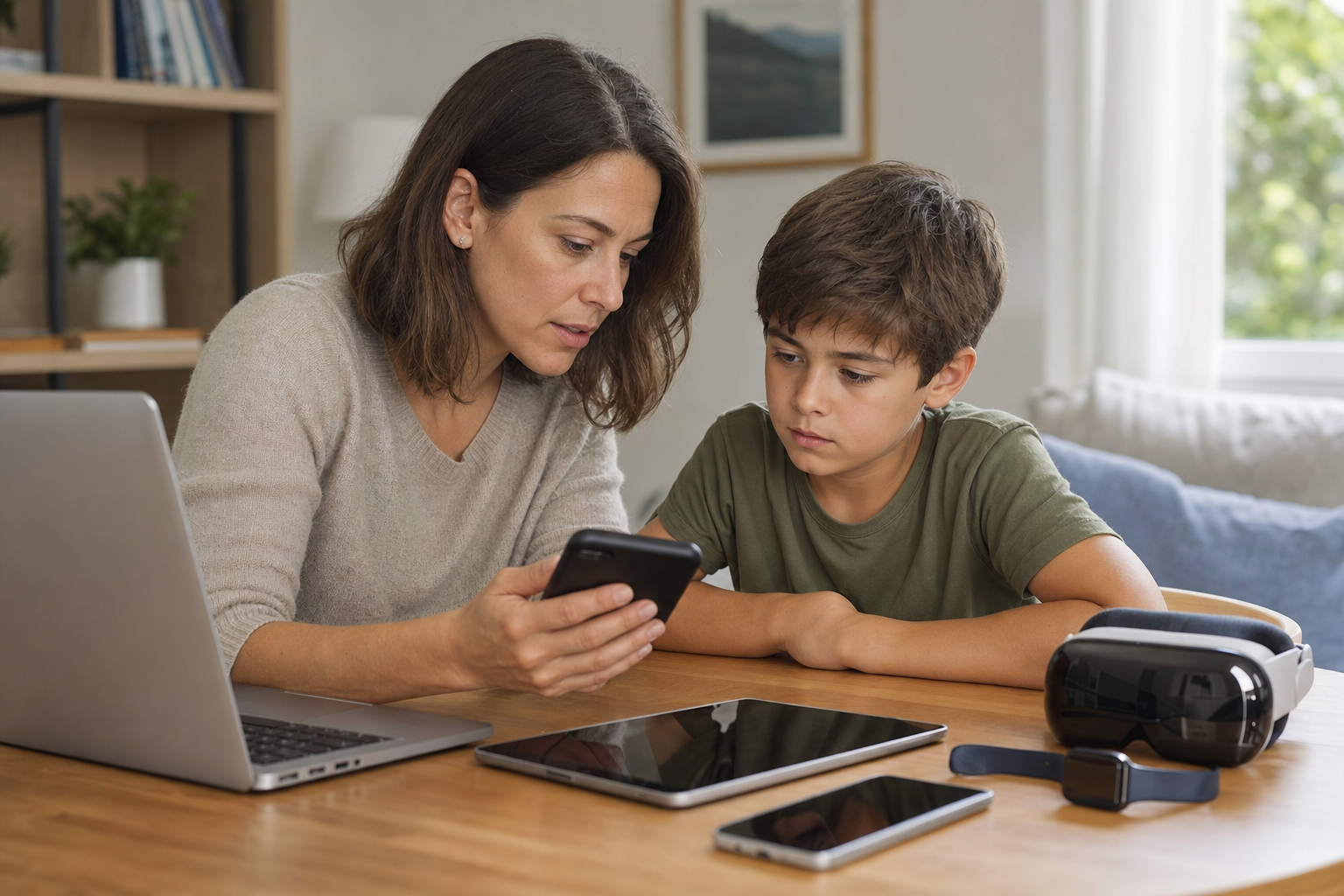
If the redesigned parental controls are not showing after you update your iPhone and your child’s iPhone, check every device in your Family Sharing group. Apple requires all devices that can be updated to use iOS 27, iPadOS 27, macOS 27, watchOS 27, or visionOS 27 before the family can move to the new Screen Time experience. An older iPad, Mac, Apple Watch, or Apple Vision Pro can therefore hold up the transition.
Why updating two iPhones may not be enough
The version 27 parental controls are a family-wide change, not simply a new layout on one iPhone. After the required devices are updated, the Family Sharing organizer or another parent or guardian can review existing controls or set up new ones for each child.
For the redesigned experience, devices in the Family Sharing group that support the new software need the appropriate version:
- iPhones need iOS 27 or later.
- iPads need iPadOS 27 or later.
- Macs need macOS 27 or later.
- Apple Watches need watchOS 27 or later.
- Apple Vision Pro devices need visionOS 27 or later.
The person completing the transition must be the Family Sharing organizer or have a parent or guardian role. Once the transition is complete, the redesigned controls include quick actions, Screen Time Schedules, and Time Allowances. Downtime is now incorporated into a child’s daily schedule, while Time Allowances replace the feature previously called App Limits.
Check every device with View Family Devices
Apple provides a device audit in Family settings. On an iPhone or iPad, open Settings, tap Family, then choose View Family Devices. On a Mac, open System Settings, choose Family, then select View Family Devices.
- Identify each device and its owner. Check more than the parent’s and child’s main iPhones. Include iPads, Macs, Apple Watches, and Apple Vision Pro devices used by family members.
- Update devices shown in the list. On an iPhone, iPad, Mac, or Apple Vision Pro, open Settings or System Settings, choose General, then choose Software Update.
- Update Apple Watch separately if necessary. You can update it in the Watch app on its paired iPhone through My Watch > General > Software Update, or directly on the watch through Settings > General > Software Update.
- Check the family list again. Return to Family > View Family Devices after updates are installed. Do not assume the family is ready merely because the two most-used phones are current.
For an Apple Watch update, Apple says the watch should be at least 50 percent charged, the paired iPhone should be updated and connected to Wi-Fi, and the watch should remain on its charger while the update finishes. A watch can also be updated directly when it is connected to Wi-Fi.
If version 27 is not offered on a device, confirm its model and installed software version. A device described as up to date may only have the newest software available for that particular model. Check whether Apple has placed it in the Legacy Devices list before taking further action.
Handle legacy and unavailable devices carefully
Older hardware does not necessarily need to be replaced. In View Family Devices, choose Legacy Devices to see devices that cannot be updated. Apple says these devices can continue to use Screen Time and Family Sharing settings from iOS 26, iPadOS 26, macOS 26, watchOS 26, or earlier.
| Device status | What to do |
|---|---|
| Can update to version 27 | Install the corresponding version 27 update or a later available version. |
| Listed under Legacy Devices | Leave it on its supported software and continue using the previous Screen Time and Family Sharing settings. |
| Missing but still owned | Use Find My to try to locate it before removing it from the owner’s Apple Account. |
| No longer owned or accessible | Review the Apple Account device list and remove it only if appropriate. |
| Cannot be updated and is still in use | Use Apple’s previous Screen Time experience or make changes directly on the child’s device. |
If an update-eligible device cannot be found or is no longer accessible, the owner should review the devices signed in to their Apple Account. On an iPhone or iPad, go to Settings, tap the account holder’s name, and scroll to the device list. On a Mac, open System Settings, select the account holder’s name, and scroll to the device list. The same list is available on the Apple Account website.
Select the obsolete device, review its details, and use Remove from Account only when you are certain it is no longer being used. Removing a device signs it out remotely and removes its access to iCloud, Find My, other Apple services, and two-factor authentication verification codes.
A removed device may reappear if it is still signed in and later connects to the internet. To remove an Apple device permanently, it must be signed out on the device itself. If the product was sold or given away, make sure it was erased and removed from the former owner’s account.
Finish the parental controls setup
After the family’s updateable devices have been updated, open Settings > Family on an iPhone or iPad, or System Settings > Family on a Mac, then choose Get Started. Apple will guide you through parental-controls setup for each child. If you do not complete the process immediately, return to Family settings and select the child’s name to continue later.
Review each section rather than assuming old restrictions will match your preferred new settings. Setup can cover website and content access, communication permissions, Screen Time Schedules, school-hour pauses, Time Allowances, and the Screen Time passcode. Apple recommends that the organizer or parent or guardian set the child’s Screen Time passcode from their own device.
If the updated interface still does not appear after the device audit, confirm the installed versions on the organizer’s device and every child’s device, verify that the person making changes is an organizer or parent or guardian, connect devices to the internet, and reopen Family settings. Installing an available version 27 maintenance update and restarting the organizer’s device are sensible additional checks.
Apple does not identify leaving and rebuilding the family group, changing account regions, factory-resetting devices, or signing every family member out as required steps for this transition. Avoid those disruptive measures unless Apple Support specifically recommends them for a separate account or device problem.
Use the supported fallback when an update is impossible
If every device in the Family Sharing group cannot be updated, Apple provides two supported alternatives: continue using the previous Screen Time and parental-controls experience, or adjust controls directly on the child’s device. These options are safer than removing a device that is still in use or attempting to install unsupported software.
The earlier experience will not provide every redesigned version 27 feature, but it preserves established family controls. For an urgent restriction, make the change directly on the child’s device and ensure the Screen Time passcode is set so the child cannot change parental-control settings without permission.
Before making wider account changes, check View Family Devices one last time. Update devices that are eligible, leave confirmed legacy devices on their supported software, remove only devices that are truly no longer owned, then select Get Started when the family is ready.
Sources
- Apple Support: Update your family devices for new parental controls
- Apple Support: What’s new with parental controls in Screen Time and Family Sharing
- Apple Support: Set up parental controls on your child’s device
- Apple Support: Review devices signed in to your Apple Account
- Apple Support: Update your Apple Watch


