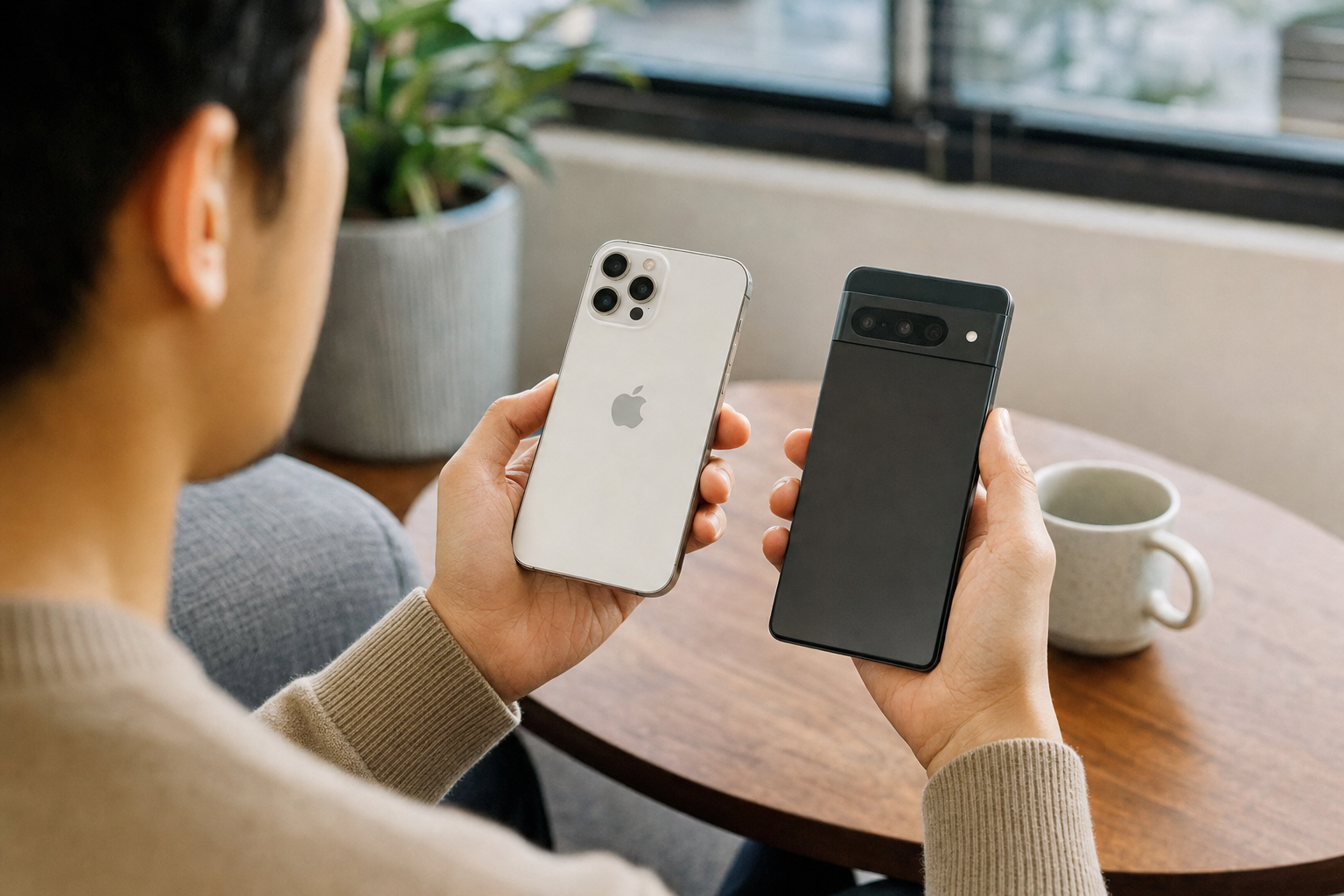
You can transfer an eSIM directly between an Android phone and an iPhone in some carrier, phone and software combinations. In the United States, Apple lists AT&T, Cricket, FirstNet, T-Mobile, Verizon and Xfinity Mobile for Android-to-iPhone transfer, while Google documents iPhone-to-Pixel transfer with several participating carriers. Keep the old phone on, unlocked and nearby until the new phone can make calls and use mobile data. Do not erase, trade in or manually remove the old eSIM first.
A direct transfer moves the mobile line, not all of your content. Move photos, apps, messages, contacts, passwords and passkeys separately. If credentials are part of your switch, see how to transfer passkeys between password managers on Android safely.
Check eligibility before you start
The transfer option appears only when the carrier, account, phones and installed software support it. Check the following before starting:
- Both phones support eSIM. eSIM hardware alone is not enough; the carrier must support the transfer for the particular devices.
- The new phone works on your carrier. A phone bought from another provider should be unlocked, not reported lost or stolen, and accepted on your current carrier’s network.
- The required software is installed. For Apple’s Android-to-iPhone process, you need an iPhone 11 or later running iOS 26 or later, plus a compatible Android phone running Android 16 or later.
- Wi-Fi and Bluetooth are on. Apple requires both phones to be connected to Wi-Fi with Bluetooth enabled for its direct Android-to-iPhone transfer.
- Both phones can be unlocked. Set a screen lock and have the old phone’s passcode, PIN or biometric unlock method available.
- Your account permits a SIM change. AT&T Wireless Account Lock blocks SIM and eSIM changes. T-Mobile says SIM Protection must be disabled before an eSIM activation or transfer through its T-Life app.
Carrier participation does not guarantee every plan or account type is eligible. Employer-managed, business, government, prepaid and protected accounts can require a carrier-assisted activation instead. If the direct-transfer option does not appear, do not delete the existing eSIM in an attempt to make it appear.
Transfer an eSIM from Android to iPhone
On compatible devices, you can transfer the line during new iPhone setup or later in Settings. The exact prompts can vary by Android manufacturer and carrier.
During new iPhone setup
- Update the Android phone if an update is available, turn on Wi-Fi and Bluetooth, and place it beside the new iPhone.
- Begin setting up the iPhone and select the option to transfer from Android when it is offered.
- Follow the pairing prompts on both phones. A compatible setup may show a QR code for the Android phone to scan.
- Select the number to move when prompted, then approve the transfer on the Android phone.
- Wait for the iPhone to confirm activation before disconnecting or resetting either device.
If the data-migration process does not offer the eSIM, complete iPhone setup and try again from Settings. Data transfer and eSIM transfer are related setup tasks, but either one can be unavailable while the other succeeds.
After iPhone setup
- Open Settings on the iPhone.
- Tap Set Up Cellular, then Transfer from Android. If the iPhone already has a SIM installed, tap Cellular, Add eSIM, then Transfer from Android.
- Tap Transfer From Android to generate a QR code.
- Use the Android phone’s camera to scan the QR code, choose the number to move and tap Transfer.
- If asked, confirm that the transferred line should become the primary eSIM.
- When the transfer finishes, tap Done on the iPhone and OK on the Android phone.
If the Android camera cannot scan the code, select Other Options under the QR code on the iPhone. On the Android phone, open Settings, then Google services, All services, Pair with iPhone or iPad and Transfer eSIM. Enter the session ID and pairing code shown on the iPhone, then follow the prompts.
After a successful transfer, the SIM on the Android phone deactivates. Make a phone call from the iPhone before erasing the Android phone. If the call fails, contact the carrier rather than removing the new eSIM.
Transfer an eSIM from iPhone to Android
Google documents direct iPhone-to-eSIM transfer for compatible Pixel phones and participating carriers. The experience varies by carrier and by where the new device was purchased. Google’s current guidance lists AT&T, Cricket, FirstNet, T-Mobile, Verizon, Xfinity Mobile and Google Fi among the participating carriers, but it directs customers to their carrier for supported models and minimum software versions.
During Android setup
- Keep the iPhone charged, unlocked and updated. Use a reliable Wi-Fi connection or the cable requested during Android setup.
- Start the Android phone and choose the iPhone or iPad option when asked which phone you are switching from.
- Keep both phones close together and follow the on-screen pairing and data-transfer instructions.
- If an eSIM-transfer choice appears, select the number and approve the request on the iPhone.
- Wait for activation to finish, then test the new Android phone before erasing the iPhone.
After setting up a compatible Pixel
On a supported Pixel, open Settings, then go to Network & internet, SIMs, Add SIM, Transfer a SIM from another phone and iPhone. Follow the on-screen steps to pair the phones by QR code. Google notes that the iPhone-to-Pixel experience can vary by carrier and purchase channel; for AT&T, T-Mobile and Verizon transfers described in its guidance, the iPhone must run iOS 26 or later.
Before or immediately after moving from an iPhone, turn off iMessage and FaceTime. On current iPhone software, go to Settings, Apps, Messages and turn off iMessage; then return to Apps, open FaceTime and turn it off. This helps prevent messages sent to your phone number from continuing to route through Apple services.
Use a carrier activation when direct transfer is unavailable
If you cannot find Transfer from Android or Transfer a SIM from another phone, use the carrier’s supported activation route. An absent menu item usually means that the phone, carrier or account does not support a direct transfer; it does not necessarily mean the new phone cannot use eSIM.
- Update and restart both phones. Install available system updates and update Google Play services on Android. Confirm that Wi-Fi, Bluetooth and screen locks are enabled.
- Check account protections. Temporarily disable a carrier security feature only when you are ready to activate the line, and turn it back on afterward. The account owner may need to approve the change or provide a one-time code.
- Use the carrier app or account website. AT&T directs eligible customers to its device-switch process and requires Wireless Account Lock to be off. T-Mobile directs customers switching between Apple and Android to the T-Life app; its process may require the device International Mobile Equipment Identity number and eSIM identifier.
- Use a newly assigned eSIM. A carrier may automatically detect an eSIM assigned to a phone bought directly from it, or it may provide a QR code or in-app activation flow. Do not assume an old QR code can be used again.
- Contact the carrier if needed. Carrier support may be necessary for prepaid service, account-security checks, unsupported devices, failed identity verification or organization-managed lines.
When activation appears complete, switch off Wi-Fi and test an outgoing call, an incoming call, a text message in both directions and a webpage over mobile data. If you use two lines, also confirm the correct defaults for calls, messages and mobile data. Keep the old phone available until you have received any account verification codes, confirmed messages are arriving and checked that important data transferred correctly.


