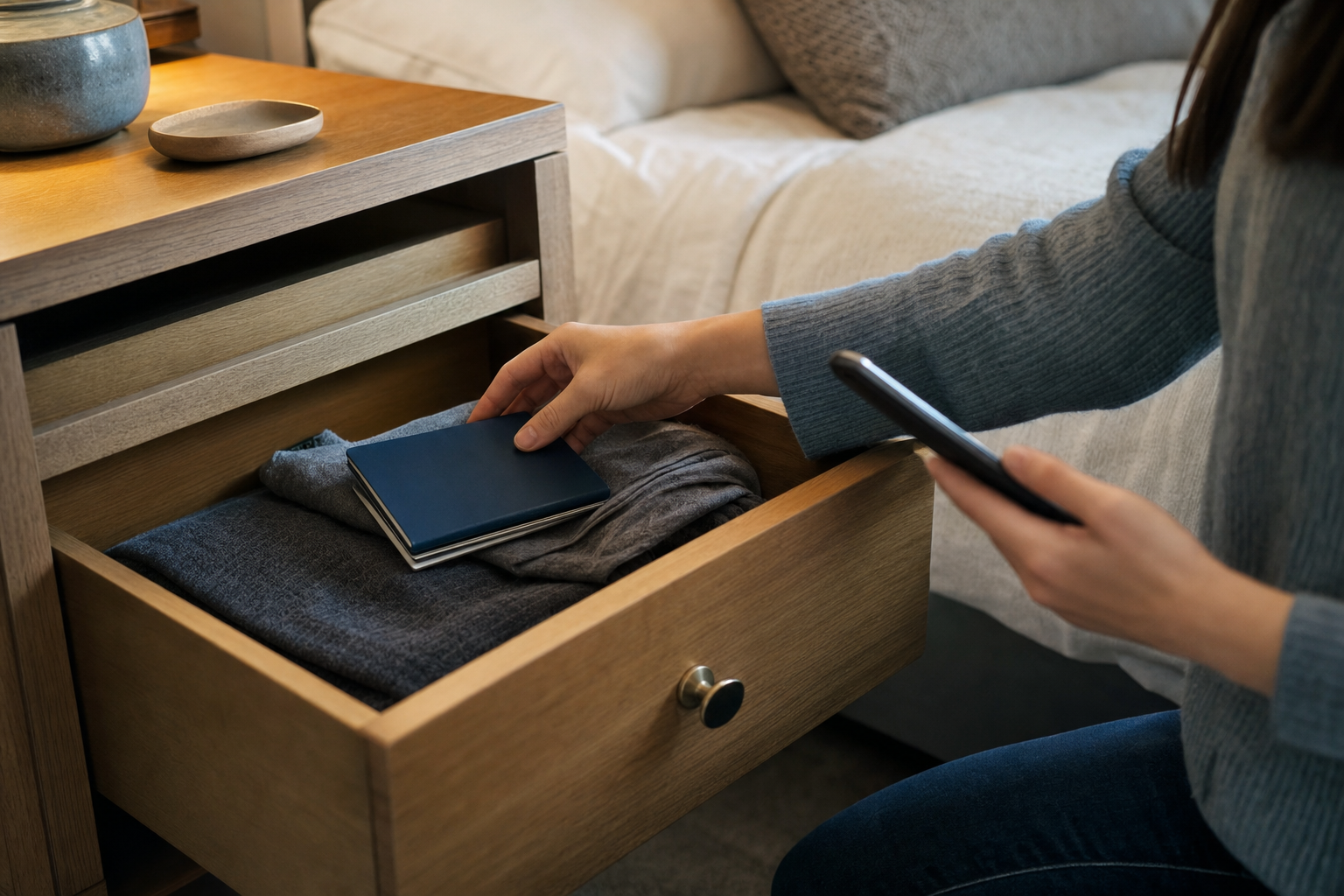
Find Hub Remembered Items lets Gemini save a note about where you placed a physical object, then recall it later. On an eligible Android phone, say something such as “Hey Google, remember in Find Hub that my passport is in the top bedroom drawer.” You can also add an item yourself in the Find Hub app. The feature requires Android 16 or later, the Find Hub and Gemini apps, the same Google Account in both apps and Gemini set as the phone’s default digital assistant.
Google announced Remembered Items in the September 2026 Android Drop. Google’s product pages describe the feature as rolling out, so the Remembered tab may not yet appear on every otherwise eligible device. Availability also depends on support for both Find Hub and Gemini in your country and language.
Check the requirements and set up Gemini
Before saving an item, make sure that your phone meets these requirements:
- It runs Android 16 or later.
- The Find Hub and Gemini apps are installed.
- You are signed in to the same Google Account in both apps.
- Gemini is selected as the device’s default digital assistant.
- Find Hub is enabled in Gemini’s connected-app settings.
To check the Android version, open Settings and look for About phone or About device. The wording varies between manufacturers. Remembered Items requires Android 16 or later; installing or updating the apps alone does not meet that operating-system requirement.
To select Gemini as the default assistant, open Settings, then go to Apps, Default apps and Digital assistant app. Choose Gemini. The path can differ slightly by phone maker.
Then open Gemini. Tap the menu, tap your profile picture or initial, choose Connected apps and turn on Find Hub. If you do not see Connected apps, first open Personal Intelligence, then choose Connected apps.
Save and find remembered items
Save an item with Gemini
Activate Gemini by saying “Hey Google” or, if it is enabled on your phone, by pressing and holding the power button. State both the item and the place where you put it. Mentioning Find Hub makes the request clearer.
- “Hey Google, remember in Find Hub that my passport is in the top bedroom drawer.”
- “Save to Find Hub that the spare house key is under the front porch mat.”
- “Gemini, my green umbrella is by the front door.”
- “Remember in Find Hub that I parked on level three, section C.”
Use a clear, consistent name for each item. For example, distinguish “car key” from “spare house key” rather than referring to both simply as “keys.”
Add an item manually
Manual entry is useful if you prefer to type the details or cannot use Gemini at that moment:
- Open the Find Hub app.
- At the bottom right, tap Remembered.
- Tap Add.
- Enter the item’s Name and Storage spot.
- Add a Location, such as a place name or street address, if useful.
- Tap Save.
The storage spot is the precise place where the item is kept, such as “blue box on the top garage shelf.” Location is the broader place or address, such as “Home,” “Office” or a street address. Adding both can be helpful when you keep belongings at more than one property.
Find an item later
Ask Gemini naturally: “Where is my passport?”, “Where did I put the AA batteries?” or “In Find Hub, where did I say I placed my umbrella?” Gemini needs an active internet connection to process voice requests and save new entries.
You can also open Find Hub, tap Remembered and browse your saved items. Use the search bar to find an entry more quickly. Google says saved items can usually still be viewed in the Find Hub app during a temporary loss of internet access, although Gemini may be unable to handle new voice requests while offline.
Update, add details and remove entries
Update a remembered item whenever it moves. With Gemini, explicitly say “update” or “move” and use the existing item name:
- “Hey Google, update in Find Hub that my passport is now in the home safe.”
- “Move my spare house key to the kitchen drawer in Find Hub.”
Using the exact existing name helps Gemini update the saved item instead of creating another one. To make a manual change, open Remembered, select the item, then change its Storage spot or Location.
You can also add notes and up to two photos to an item. A photo of a drawer, shelf, box or parking landmark may be more useful than a close-up of the item itself. Notes can record details such as “inside the red folder” or “box labelled winter cables.” Do not store passwords, security codes or other sensitive information in notes.
To delete an entry, open it from the Remembered list, tap Remove from Find Hub, then tap Remove to confirm.
Understand privacy and location limits
When you add or update an entry, Find Hub can detect and save your current address if you grant location permission. To allow it to save locations while the app is closed, Android may require the Allow all the time permission. You can enter a location name or address manually instead.
Remembered Items are private to the Google Account that created them. Google does not currently allow family members to share or edit them through Find Hub. If your list seems empty, confirm that you are using the same account that saved the items.
A remembered location is not live tracking data. The object does not report its current position, and Find Hub cannot know that someone has moved it. The feature displays information that you supplied earlier, and its accuracy depends on that information. A compatible tracker tag or connected device is needed for live or last-known device location features.
Remembered Items are intended for physical objects and places. They cannot track digital files, abstract ideas or events, and a saved entry is not proof that an object remains at the recorded location.
Fix a missing Remembered tab or Gemini problem
If the Remembered tab is missing or Gemini cannot save an item, check the following:
- Confirm that the device runs Android 16 or later.
- Confirm that Find Hub and Gemini are installed and signed in to the same Google Account.
- Check that Gemini is the default digital assistant in the phone’s settings.
- In Gemini, open Connected apps and make sure Find Hub is turned on.
- Use an explicit command that includes “Find Hub” and a specific storage spot.
- Check that the phone has an active internet connection before using Gemini.
- Check Gemini’s country and language availability if the app or voice features are unavailable.
If all requirements are met but the tab is still absent, there may be no setting you can switch on manually. Google’s September 2026 feature announcements describe Remembered Items as rolling out, so availability can arrive at different times on eligible devices.


