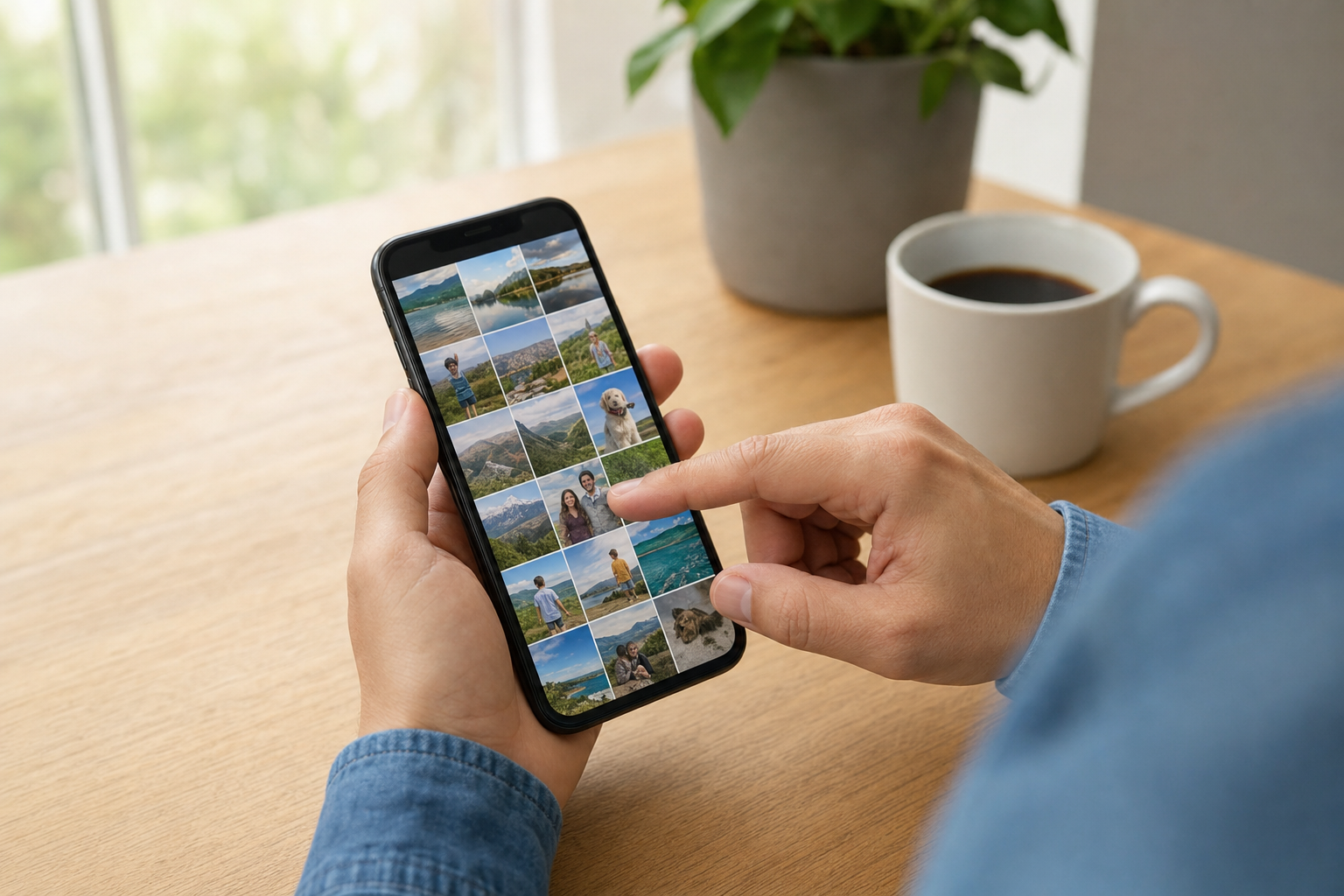
You generally cannot delete individual photos from an iPhone and keep those same items in iCloud Photos. With Sync this iPhone turned on, iCloud Photos is one synchronized library: deleting a photo or video on the iPhone deletes it from iCloud and from other devices using that Apple Account. To free space without deleting the library, use Optimize Storage. To remove the library from one old or secondary iPhone, first confirm that uploads are complete, then turn off synchronization and choose Remove from iPhone.
These instructions follow iOS 27. On iOS 26 or earlier, some labels and menu locations differ, especially the storage setting.
Choose the option that matches your goal
| Your goal | Best approach | Avoid doing this |
|---|---|---|
| Free iPhone storage while keeping the whole library in Photos | Keep Sync this iPhone on and enable Optimize Storage | Do not manually delete photos or videos you want to retain |
| Remove the iCloud Photos library from an old or secondary iPhone | Verify uploads, turn off Sync this iPhone, then choose Remove from iPhone | Do not turn off synchronization before confirming that recent items reached iCloud |
| Remove selected items from iCloud Photos but keep independent copies | Export the items to a separate archive, verify the archive, then delete the iCloud Photos copies | Do not expect iCloud Photos to keep selected items cloud-only on one synchronized iPhone |
The key distinction is between deleting an item and removing synchronized content from one device. A deletion changes the shared iCloud Photos library. Choosing Remove from iPhone after disabling Sync this iPhone removes the synchronized library from that particular iPhone without deleting the iCloud library.
Hypothetical example: Maya has a 128 GB iPhone and wants to continue browsing 40,000 family photos. Optimize Storage is the right choice because the library remains visible in Photos while the iPhone can replace some full-resolution originals with smaller device versions.
Hypothetical example: Daniel has moved to a new iPhone and keeps his previous phone only for music. After checking that the old phone’s recent photos and videos appear elsewhere, he can turn off Sync this iPhone on the old device and choose Remove from iPhone.
Check that your photos have finished uploading
Do not treat visible thumbnails as proof that every original is safely in iCloud. A photo can appear in the library while its upload is still pending. Complete these checks before changing settings or deleting anything.
- Confirm the Apple Account. Open Settings, tap your name, and confirm that the email address or phone number belongs to the Apple Account holding the expected photo library. Check another trusted device if you use more than one account.
- Check Photos synchronization status. Open Photos, tap Collections, then tap the profile button near the top of the screen. Review the library status. If it shows that items are uploading, wait until the process completes.
- Resolve a paused upload. Connect the iPhone to power and reliable Wi-Fi. Low Power Mode or Low Data Mode can pause Sync Immediately. In iOS 27, go to Settings, tap your name, tap iCloud, tap Photos, tap Sync Immediately, then choose For Today if you need to prioritize the upload. This can use more battery life and cellular data if cellular access is enabled.
- Check available iCloud storage. Go to Settings, tap your name, then tap iCloud. If iCloud storage is full, new photos and videos cannot upload until you free storage or change to a larger iCloud+ plan.
- Check recent items elsewhere. Open Photos on another synchronized Apple device or sign in to iCloud Photos in a browser. Find several recent photos and videos, including an edited photo or a longer video rather than only older thumbnails.
- Make an independent copy of irreplaceable files. Export important originals to a Mac, Windows computer, external drive, or another cloud service. Open sample photos and play several copied videos before relying on that archive.
iCloud Backup is not a second copy of an iCloud Photos library. When iCloud Photos is enabled, the synchronized library is not duplicated in the device’s iCloud Backup. Apple also advises keeping separate copies of your library in its iCloud Photos setup and storage guidance.
Use Optimize Storage to free space safely
Optimize Storage is the appropriate option for most people who need more space but still want their full library available in Photos. Full-resolution originals remain in iCloud, while the iPhone keeps space-saving versions and downloads originals when needed.
- Open Settings and tap your name.
- Tap iCloud.
- Under Saved to iCloud, tap Photos.
- Confirm that Sync this iPhone is on.
- Tap iPhone Storage.
- Select Optimize Storage.
On iOS 26 or earlier, Optimize Storage appears directly in the Photos settings rather than under iPhone Storage. Optimization is automatic: it starts with photos and videos you access least and does not let you choose particular albums or files to remove from local storage.
Check the result in Settings, General, iPhone Storage. Compare the available capacity before and after the phone has had time to optimize. Do not expect Photos storage to fall to zero. The iPhone still needs previews, databases, edits, and sometimes downloaded originals.
Optimization can affect offline access. A photo may remain visible as a preview but need an internet connection before you can view, edit, share, or download the full-resolution original. Before travel or another period without dependable connectivity, download any photos, documents, or videos you will need offline.
Remove the library from one secondary iPhone
Use this method if an old, secondary, or low-storage iPhone should no longer carry your iCloud Photos library. Turning off Sync this iPhone stops future uploads, edits, and deletions from synchronizing with that device; it does not turn off iCloud Photos for the Apple Account.
Before proceeding, verify that synchronization is current and that the newest items from this iPhone are visible on another device or in iCloud Photos on the web.
- Open Settings and tap your name.
- Tap iCloud, then tap Photos under Saved to iCloud.
- Turn off Sync this iPhone.
- When prompted, choose Remove from iPhone.
- Keep the iPhone connected to power until the change has finished.
- Open Photos and confirm that the synchronized library has been removed from that iPhone.
The other option, Download Photos & Videos, stops synchronization but retains a local copy. It requires enough device storage and is not suitable when the aim is to clear the phone.
Do not select an account-wide option such as Turn Off and Delete Photos. That setting is different from disabling synchronization on one device: it schedules the iCloud Photos library for deletion from iCloud after 30 days unless you undo it.
Photos taken after synchronization is turned off remain only on that iPhone unless you copy them elsewhere. If you later turn Sync this iPhone back on, the current iCloud Photos library can synchronize to the device again, and locally stored photos may upload.
If you are selling, giving away, or recycling the iPhone, removing photos is not enough. After confirming that your data exists elsewhere, use Erase All Content and Settings to remove the Apple Account, messages, passwords, and other personal information.
Archive selected photos before deleting them
iCloud Photos does not offer a setting that keeps selected items only in iCloud while removing their local versions from one iPhone that continues to synchronize. Optimize Storage decides what remains downloaded. You cannot mark a particular photo or album as permanently cloud-only.
A storage-cleaning app cannot change this rule. It may help identify large videos, screenshots, or duplicates, but deleting a selected item through an app normally deletes it from the synchronized iCloud Photos library as well.
If you want to remove selected items from iCloud Photos while keeping copies, archive them first:
- On a Mac: Select items in Photos, choose File, then Export, and save them to a Finder folder or external drive. A file held only in the synchronized Mac Photos library is not an independent archive.
- On Windows: Download the original files using iCloud for Windows or iCloud Photos on the web, then copy them to a separate folder and preferably another drive.
- From an iPhone: Connect compatible external storage, select the photos and videos in Photos, tap Share, choose Export Unmodified Original, select the external drive under Locations, and tap Save.
- With another cloud provider: Confirm that full-resolution photos, videos, metadata, and required file formats have uploaded. Open several files through that provider’s website or another device.
Apple provides the same external-storage export method in its instructions for archiving iCloud information. Check file counts where practical and test older photos, edited images, Live Photos, and long videos. Only then delete the selected items from Photos, knowing that the deletion also removes them from iCloud Photos and other synchronized devices.
Hypothetical example: Priya wants to remove older high-resolution videos from iCloud Photos while continuing to synchronize new family pictures. She exports the videos to an external drive, makes a second copy on a computer, opens several files from both locations, and only then deletes the iCloud Photos copies.
Know the difference between personal, shared, and backed-up photos
Several Apple photo features can appear in Photos, but they are not interchangeable forms of backup.
- Personal Library: Your main iCloud Photos collection. Deletions synchronize to devices using the same Apple Account.
- iCloud Shared Photo Library: A collaborative library separate from participants’ Personal Libraries. Any participant can delete shared items. The person who added an item is the only person who can permanently delete it from Recently Deleted before the recovery period ends. Storage for the Shared Library counts against the organizer’s iCloud storage.
- Shared Albums: A sharing feature, not a dependable archive. In iOS 27, photos and videos added to a shared album count against the storage of the person who created it. Deleting a shared album removes participants’ access to items they did not save to their Personal Libraries, and photos deleted from a shared album are deleted immediately.
- iCloud Backup: Stores eligible device data that is not already synchronized through iCloud. It generally does not duplicate an active iCloud Photos library.
When viewing Personal and Shared Libraries together, check which library contains an item before deleting it. A deletion from a Shared Library affects the other participants even if the combined view makes the item appear alongside personal photos.
Recover an accidental deletion promptly
Photos and videos deleted from iCloud Photos normally remain in Recently Deleted for 30 days. To recover them on an iPhone, open Photos, tap Collections, scroll to Utilities, open Recently Deleted, authenticate if asked, tap Select, choose the items, then tap Recover.
Recovery returns the items to the synchronized library. Do not empty Recently Deleted until you have confirmed that the deletion was intentional. If your iCloud storage limit has been exceeded, photos and videos deleted from the library can be removed immediately instead of remaining recoverable for 30 days.
If Recently Deleted has been emptied or the 30-day period has passed, check the independent Mac, PC, external-drive, or third-party archive made before deletion. Without a separate copy, an iCloud Photos library and an iCloud device backup should not be treated as two recovery sources. If you are uncertain about the library’s status, stop deleting items and use Optimize Storage until uploads, account identity, and backup copies have been verified.


