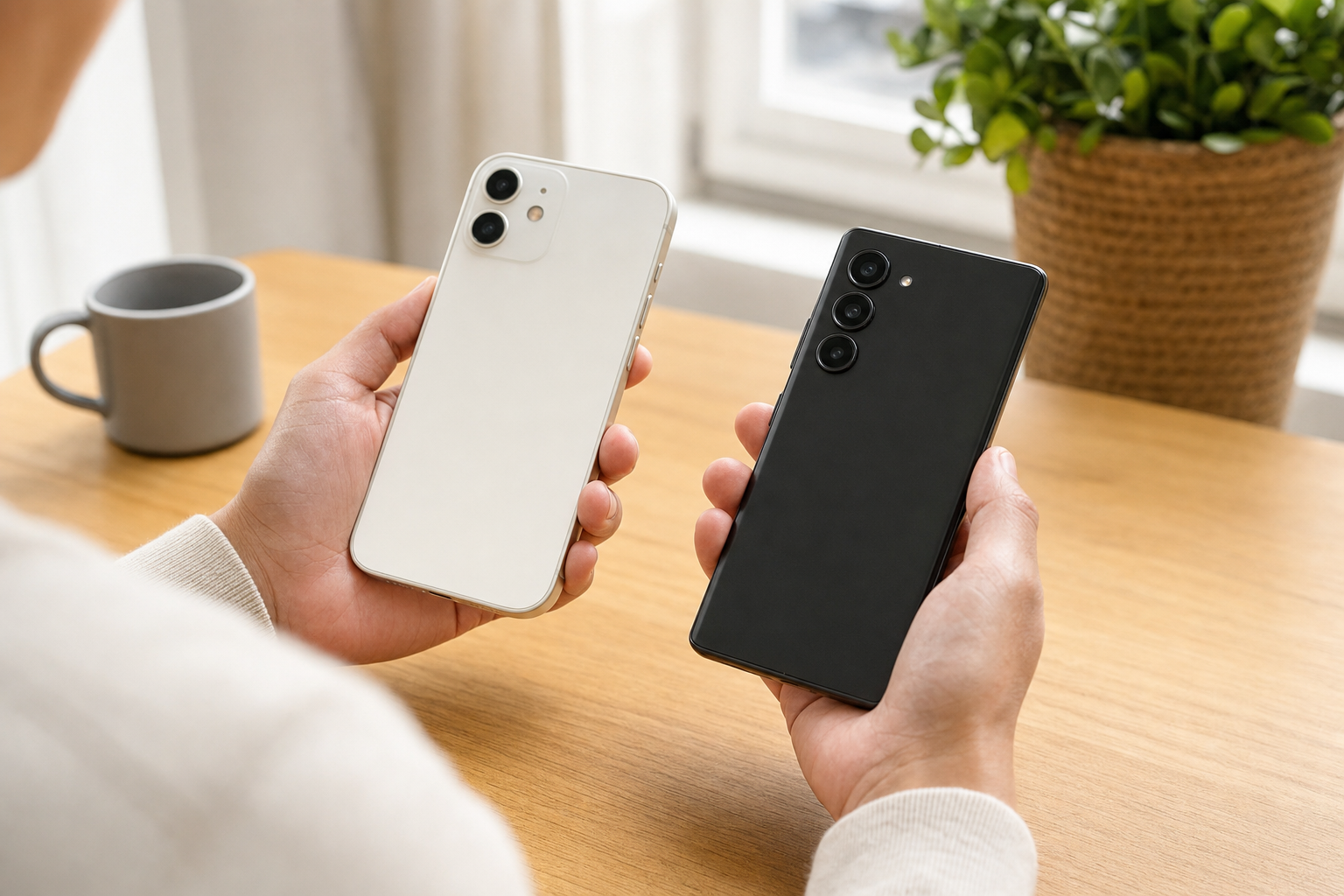
You may be able to transfer WhatsApp chats from an iPhone after Android setup if your phone still offers a supported copy-data route. If WhatsApp has already been opened or set up on Android, uninstall and reinstall it or clear its storage before using an available after-setup transfer route. If no supported copy-data route is available, back up the Android phone; a factory reset may be required. Keep WhatsApp installed and intact on the iPhone until you have checked the chats and media on Android.
Decide whether you can avoid a reset
Do not factory-reset the Android phone before checking its copy-data tools. The available route depends on the phone maker, Android version and how the phone was initially set up. A post-setup option is not guaranteed merely because a phone runs a recent version of Android.
| Your situation | Best next step |
|---|---|
| You see Android Switch and Transfer WhatsApp Chats | Use that post-setup route before opening WhatsApp on Android. |
| You skipped copying data during setup | Look for a copy-data notification or Android Switch promptly; Google says restoration may be available for three to seven days. |
| You have a Samsung Galaxy phone | Use Smart Switch or the Galaxy setup-transfer option, then follow any separate WhatsApp cable prompts. |
| WhatsApp has not been opened on Android, but no transfer route appears | Back up Android-only content and plan to reset the phone. |
| WhatsApp has already been activated on Android | Save Android-only information. If an after-setup transfer route is available, uninstall and reinstall WhatsApp or clear its storage before transferring. If no route is available, a reset may be required. |
On many non-Samsung phones, open Settings > Accounts & backup and look for Android Switch, Copy data using Android Switch or a copy-data notification. If you see Transfer WhatsApp Chats, use it. The menu location can differ by manufacturer. Google’s instructions for transferring WhatsApp data to Android confirm both the post-setup route and the limited three-to-seven-day recovery period after initial data copying was skipped.
If you already opened or set up WhatsApp on Android, save Android-only information, then uninstall and reinstall the app or clear its storage before trying an available after-setup route. If the phone offers no suitable transfer tool in Settings, a factory reset may be required.
Prepare both phones before you start
The iPhone is the source copy. Confirm that its chats open normally, then leave WhatsApp installed and avoid deleting chats or media to free space. An iCloud backup can protect the history for a later iPhone restore, but it is not a substitute for the direct iPhone-to-Android migration process.
- Use the same phone number. The WhatsApp number on Android must match the number registered on the iPhone when you transfer.
- Change a number before moving chats. If you are also changing numbers, do it first on the iPhone in WhatsApp Settings or profile > Account > Change Number. Complete verification before starting the phone transfer.
- Check available space. In WhatsApp on the iPhone, open Settings or profile > Storage and data > Manage storage to review the size of stored chat media. Make sure the Android phone has enough free internal storage for the history and temporary transfer files.
- Have a data cable ready. Use a compatible USB-C to USB-C or USB-C to Lightning cable, depending on the iPhone connector. If necessary, use an appropriate adapter. A cable intended only for charging may not work.
- Update both phones. Install the current available system updates and update WhatsApp from the App Store and Google Play.
- Charge the phones first. Keep both devices connected to power where possible and use a stable Wi-Fi connection when the on-screen instructions require it.
- Know the iPhone passcode. You will need to unlock the iPhone, tap Trust and may need to enter its passcode more than once.
If you are also moving your cellular service, handle that separately with How to Transfer eSIM Between iPhone and Android. Moving an eSIM does not change the requirement to register WhatsApp with the same number as the iPhone history.
Hypothetical example one: Maya receives a new number with her Android phone. She should not register WhatsApp on Android with that new number first. To keep her old chats, she changes the WhatsApp number on her iPhone, completes verification there and then starts the Android transfer using the updated account.
Use the available post setup transfer route
Use this route only when the Android phone displays a WhatsApp transfer option after setup. The names on screen may differ, so follow the phone’s instructions if they do not precisely match the labels below.
- Do not open or activate WhatsApp on Android. If it has already been opened or set up, save Android-only information, then uninstall and reinstall it or clear its storage before starting the transfer.
- On Android, open Settings > Accounts & backup.
- Select Android Switch, Copy data using Android Switch or the comparable transfer tool shown by the phone maker.
- Select Transfer WhatsApp Chats if it is offered.
- Connect the iPhone and Android phone with the requested cable.
- Unlock the iPhone, tap Trust if asked and enter the iPhone passcode.
- Use the iPhone Camera app to scan the WhatsApp QR code displayed by Android.
- When WhatsApp opens on the iPhone, follow its prompts and tap Start or Start transfer.
- Keep the devices connected until the Android phone reports that copying is complete.
- When instructed, disconnect the cable, open WhatsApp on Android, verify the same number and accept the import prompt.
If the iPhone camera does not open the transfer screen after scanning, open WhatsApp on the iPhone and go to Settings > Chats > Transfer chat history > Transfer to Android, then continue with the code shown on Android.
Hypothetical example two: Luis set up a new Android phone yesterday, skipped copying data and has not touched WhatsApp. He sees a copy-data notification and a WhatsApp transfer option in Android Switch. He can use that route without erasing the phone, but should complete it promptly because the available recovery period is limited.
Follow the Samsung Smart Switch route
On a Galaxy phone, look in Settings > Accounts and backup for the setup-transfer option, or open Smart Switch. Select Receive on this phone > iPhone or iPad and follow the method offered by the phone.
For a cable transfer, choose Cable, connect the iPhone, tap Trust on the iPhone and select the data to move. Smart Switch can display additional steps for apps such as WhatsApp; complete those prompts rather than assuming the general phone copy has moved the chat history.
Galaxy phones running Android 17 with One UI 9 or later can begin the general iPhone copy wirelessly when the iPhone runs iOS 26.6 or later. WhatsApp remains a separate item and still needs a cable connection. Samsung’s Smart Switch instructions for iPhone transfers specify this two-stage process. If the wireless transfer fails or WhatsApp is not offered, retry with the cable method.
Do not use Smart Switch’s iCloud import expecting it to restore WhatsApp chats. That option can retrieve supported iCloud content such as contacts, photos, files, notes and calendar data, but WhatsApp chat history requires the dedicated direct-transfer prompts.
Reset the Android phone when the route is unavailable
A factory reset erases the Android phone, not just WhatsApp. Before resetting, save photos, downloads, authenticator recovery information, locally stored files and any messages created after setup. Use the checklist in How to Transfer Data to a New Android Phone After Setup to identify Android-only content that needs to be preserved.
- Back up or copy all Android content you want to retain.
- Use the phone’s system reset menu to factory-reset the Android phone.
- Restart setup, connect to a network and sign in to the Google Account you plan to use.
- At Copy apps and data, choose Copy from iPhone or iPad.
- Connect the devices with the compatible cable, then tap Trust and enter the iPhone passcode.
- Select Apps and other desired content. Check the app list if needed to confirm that WhatsApp is included.
- When Android displays the WhatsApp instructions, scan its QR code with the iPhone and start the transfer in WhatsApp.
- Finish Android setup without activating WhatsApp early.
- Open WhatsApp only when instructed, verify the same number and accept the import.
Reinstalling WhatsApp or clearing its storage deletes local Android WhatsApp data and can prepare the app for an available after-setup transfer. It does not add a missing system transfer tool. If no supported post-setup route exists, preserve anything unique from Android; a factory reset may be required.
Protect messages that cannot be merged
WhatsApp’s supported move transfers account information, individual chats, group chats, chat media and relevant settings. Display names, status updates, peer-to-peer payment messages and media received through WhatsApp Channels do not transfer. WhatsApp Business chats currently cannot be transferred through this method. The exact result can also depend on whether a particular feature is available on Android, so check important conversations and media after the import.
Do not expect WhatsApp to merge independently created iPhone and Android histories. If you have sent or received messages after activating WhatsApp on Android, save any Android-only text, photos, documents or voice notes outside WhatsApp before resetting. Exported chats can be kept as a reference, but they cannot be imported back as normal, active WhatsApp conversations.
If both phones have new messages, choose which history is the one to preserve in WhatsApp. Save unique items from the other device elsewhere, avoid starting further conversations during the move and tell important contacts that you are changing phones if a short interruption would cause problems.
Troubleshoot and verify the imported history
- No transfer option: Search Android Settings for “copy data,” check for a setup notification and install available system or Smart Switch updates. If no supported option appears, use the reset route.
- The QR code will not scan: Raise Android screen brightness, clean the iPhone camera lens, remove an Android screen protector that obscures the display and confirm that you are scanning the WhatsApp transfer code.
- The cable is not recognised: Unlock both phones, reconnect the cable, approve Trust on the iPhone and try another known data-capable cable or suitable adapter.
- The import stops: Keep the devices connected and powered, follow any connection instructions on screen and restart the process if prompted. Do not delete WhatsApp or chats from the iPhone.
- There is not enough storage: Remove Android downloads or other files that are safely backed up. Do not delete source chats from the iPhone to create room.
- WhatsApp shows “Could not import”: Retry the transfer. If WhatsApp reports that the chat history is corrupted, that history may not be transferable.
- Verification is delayed: Stop repeatedly requesting codes and wait for the timer shown by WhatsApp. If email verification is offered, use it only if you previously added and verified an email address for the account.
- A work-managed iPhone cannot transfer: Enterprise certificates or device-management profiles can prevent migration. Ask the organization’s administrator for an approved method rather than removing security controls without permission.
Before erasing or trading in the iPhone, open several old individual and group chats on Android. Scroll back to older dates and test a representative selection of photos, videos, voice notes and documents. Confirm that recent conversations are present and that WhatsApp shows the correct phone number.
After the history looks complete, create a new Android WhatsApp backup in WhatsApp Settings > Chats > Chat backup. Keep the iPhone unchanged until that backup has finished and you have used the Android phone long enough to identify missing material. Only then should you erase the iPhone or hand it over.


