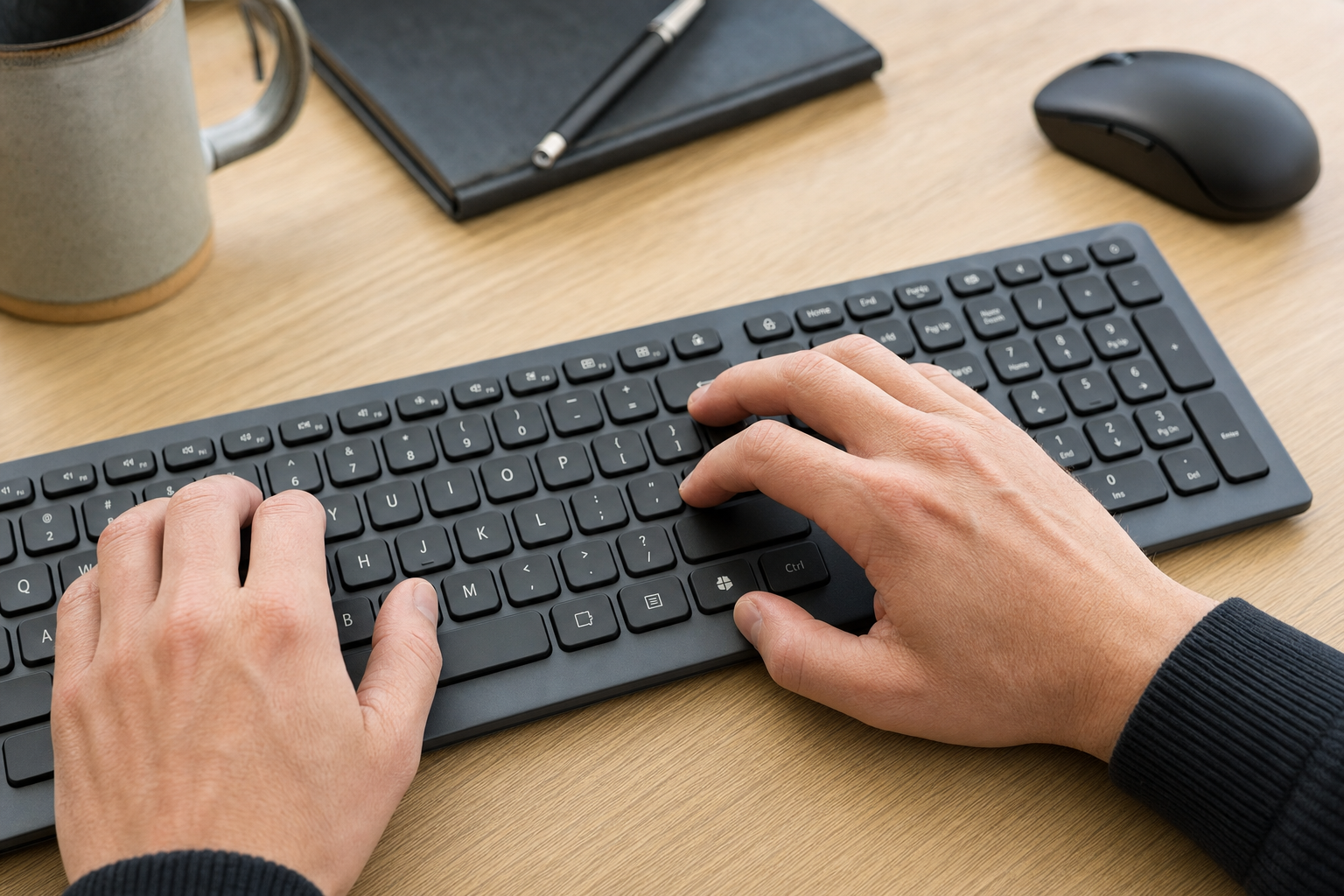
To remap the Copilot key to Right Ctrl in Windows 11, open Settings > Bluetooth & devices > Keyboard, then select Customize Copilot key on keyboard under Shortcuts and hotkeys. Choose Right Ctrl. This built-in option was introduced in the optional preview update released on September 22, 2026, and is rolling out gradually to eligible Windows 11 version 24H2 and 25H2 devices. You can also choose Context Menu if that is the key your keyboard replaced.
This setting is intended for Windows 11 devices with a physical Copilot key, especially keyboards where the key replaced Right Ctrl or the Context Menu key. Availability can depend on the Windows update installed, the phased feature rollout and the keyboard manufacturer’s implementation.
How to remap the Copilot key to Right Ctrl
Use the Keyboard page in Settings for the physical Copilot key. This is different from the setting that customizes the Windows key + C shortcut, which is found under Personalization.
- Press Windows key + I to open Settings.
- Select Bluetooth & devices.
- Select Keyboard.
- Under Shortcuts and hotkeys, select Customize Copilot key on keyboard.
- Choose Right Ctrl.
- Close Settings and test the key in an application you use regularly.
For a quick test, open Notepad, type a line of text, select it and press the remapped key with C to copy. Press the remapped key with V to paste. It is also worth testing the key in the editing, design or accessibility software you use most, as applications can handle shortcuts differently.
The keycap will still display the Copilot logo, but Windows should treat a press as Right Ctrl after the setting is applied.
Microsoft documents one important limitation: shortcuts that include Right Ctrl + Windows key or Right Ctrl + Shift might not work normally after this remapping. Use the physical Left Ctrl key for those combinations.
Should you choose Right Ctrl or Context Menu
The best option depends on which key the manufacturer removed and how you use your keyboard. Restoring the displaced function usually makes the layout feel more familiar.
| Choose this option | Best for | Main consideration |
|---|---|---|
| Right Ctrl | Copying, pasting, text selection, editing and right-hand keyboard shortcuts | Some combinations involving Right Ctrl with the Windows key or Shift have documented limitations |
| Context Menu | Opening right-click menus from the keyboard and keyboard-only accessibility workflows | It does not replace Ctrl for common editing shortcuts |
| Copilot | Keeping the key assigned to its original Copilot action | The displaced Right Ctrl or Context Menu function remains unavailable from that physical key |
Choose Right Ctrl if the Copilot key occupies the lower-right position normally used for Ctrl. This can be particularly helpful when using the mouse, numeric keypad or navigation keys with your right hand while entering Ctrl-based shortcuts.
Choose Context Menu if the Copilot key replaced the Menu key traditionally positioned near Right Ctrl. The Context Menu key opens the relevant menu for the selected item, much like right-clicking. Shift + F10 can also open a context menu in many Windows situations, although a dedicated key may be more convenient for keyboard-only use.
If you are unsure, try Right Ctrl first and use the computer normally for a day. Change it to Context Menu if you seldom use right-side Ctrl shortcuts but regularly need keyboard access to context menus.
How to restore the Copilot key action
The setting is reversible. You do not need to uninstall the update or edit the registry to return the key to its previous Copilot action.
- Open Settings > Bluetooth & devices > Keyboard.
- Under Shortcuts and hotkeys, select Customize Copilot key on keyboard.
- Select the Copilot option shown on your PC.
- Close Settings and press the key to confirm its new action.
You can use the same menu to switch directly between Right Ctrl and Context Menu. The exact wording may vary slightly as Microsoft rolls out the feature.
If your computer or keyboard has a manufacturer-provided keyboard utility, do not configure the Copilot key in both the manufacturer utility and Windows Settings. Microsoft advises using either the Windows setting or the device setting, not both.
What to do if the Keyboard setting is missing
Microsoft introduced the Right Ctrl and Context Menu options in KB5124010, the optional Windows 11 preview update released on September 22, 2026. It applies to Windows 11 versions 24H2 and 25H2, with operating system builds 26100.9550 and 26200.9550. Because this is a gradual rollout, installing the update does not guarantee that the setting will appear immediately.
- Check your Windows version and build. Press Windows key + R, enter winver and select OK. Note the version and operating system build shown.
- Check for the optional preview update. Open Settings > Windows Update > Advanced options > Optional updates. If KB5124010 is offered and you are comfortable installing a preview update, install it and restart the PC.
- Check the correct Settings page. Look in Settings > Bluetooth & devices > Keyboard. The separate setting in Settings > Personalization > Text input controls the Windows key + C shortcut, not the physical Copilot key remapping feature.
- Allow for the phased rollout. If KB5124010 is installed but the option is still absent, Microsoft may not yet have enabled the feature on your device. Check for later Windows updates rather than reinstalling the same update repeatedly.
- Check manufacturer controls. Copilot key behavior can vary with the keyboard layout, firmware and hardware design. Review the computer or keyboard maker’s support information if the key already behaves differently from expected.
- Ask before changing a managed work PC. An organization may defer optional preview updates and new features. Contact your information technology administrator rather than trying to bypass workplace update policies.
Restart the computer after installing an update. If you use an external keyboard, disconnecting and reconnecting it can also help Windows recognize the device again, although the built-in option still depends on how that keyboard implements its Copilot key.
Older workarounds using registry changes, PowerToys or other remapping utilities may behave differently because some Copilot keys send a shortcut rather than a standard single key signal. Do not combine an older remap with the Windows setting. Disable or remove an existing remap before testing the built-in option.
If the setting remains unavailable, press Windows key + F to open Feedback Hub. Include the Windows version, build number, computer model and keyboard model in the report.


