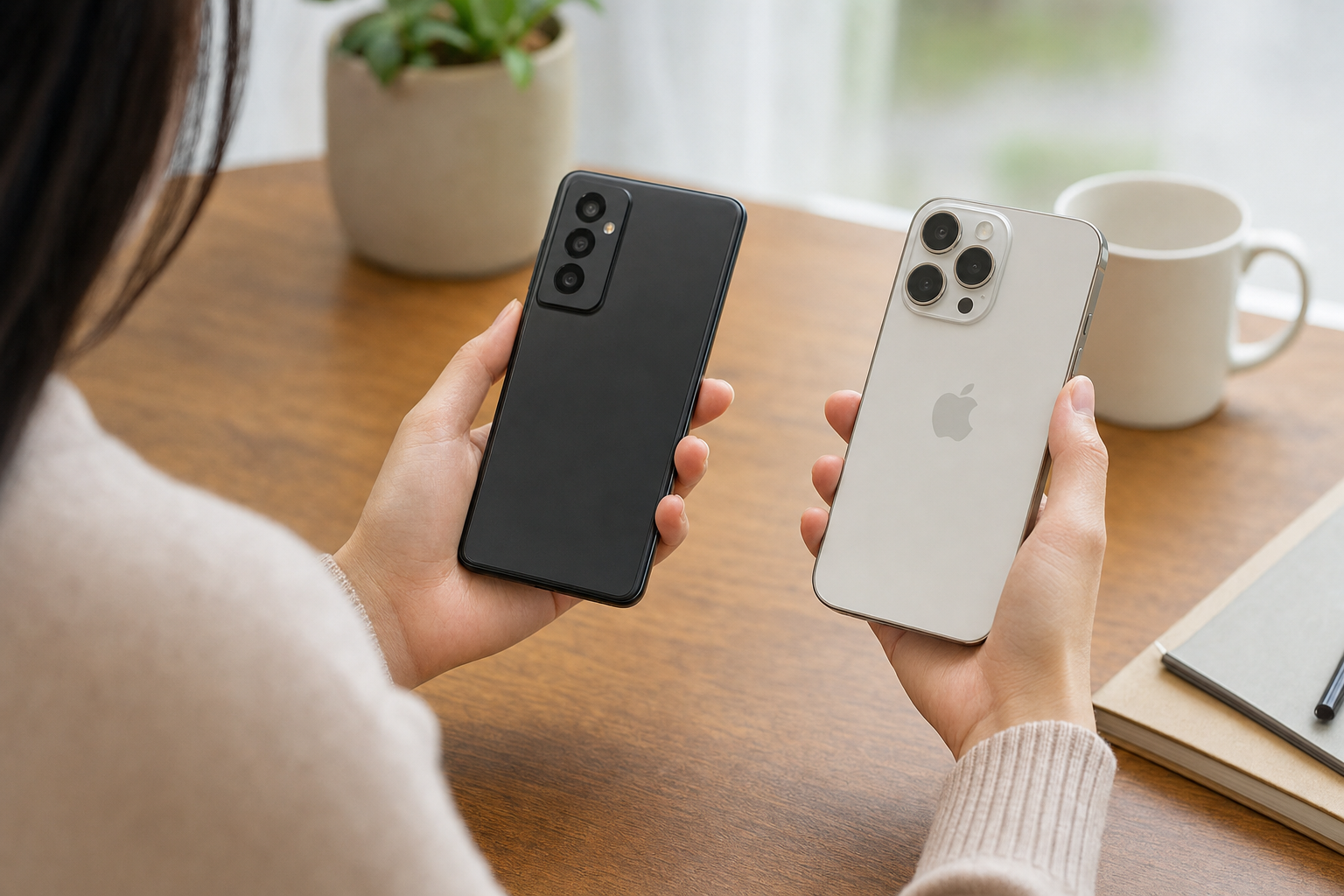
You can transfer data from Android to a new iPhone without installing Move to iOS when you have a compatible Android phone running Android 17 or later and the iPhone shows Transfer without App during setup. Device makers must support the feature, so Android 17 alone is not enough. If that option is absent, use Move to iOS during setup or transfer eligible content through your accounts and cloud services instead.
Check whether app free transfer is available
The iPhone setup screen is the decisive check. Begin setting up the new or erased iPhone, open Transfer Your Apps & Data, tap From Android, and look for Transfer without App. Apple currently shows this option for compatible devices in iOS 26.5. If the iPhone instead offers only Transfer with App, the app-free route is not available for that phone combination.
| What you see | What it means | What to do |
|---|---|---|
| Transfer without App appears after you tap From Android | The devices can use the app-free transfer route | Continue with QR-code pairing |
| Only Transfer with App appears | The current device or software combination does not support app-free transfer | Use Move to iOS during setup |
| Copy Data is missing in Android settings | The Android device does not expose the manual pairing workflow | Update Android, then use Move to iOS if it remains unavailable |
| The iPhone already shows the Home Screen | Initial setup has finished | Erase the iPhone and start again, or move content manually |
On Android, check the operating-system version in Settings > About phone > Android version; the wording can vary by manufacturer. Install available Android and Google Play system updates, then restart the phone. The updated software still has to be compatible with Apple’s transfer feature. Apple’s instructions for moving from Android to iPhone confirm that the app-free method requires a compatible Android 17 device and that device-maker support can vary.
Hypothetical example one: Priya’s Android phone runs Android 17 and her new iPhone offers Transfer without App. After she scans the iPhone’s QR code, Android displays categories such as photos, contacts and messages. She can continue without downloading Move to iOS.
Hypothetical example two: Daniel’s phone runs Android 17, but the iPhone shows only Transfer with App. His Android settings also lack Google services > All services > Pair with iPhone or iPad > Copy Data. His current device or software build does not support the new route, so he should use Move to iOS or transfer content separately.
Prepare storage, connections and accounts
Do the preparation before progressing far through iPhone setup. It reduces the chance of an incomplete transfer or a failed eSIM activation.
- Check storage space. Review Android storage in Settings > Storage, including items on a microSD card that you intend to copy. The selected content must fit in the iPhone’s available storage, which is lower than its advertised capacity because iOS uses space.
- Connect both phones to power. A large photo or video library can take a long time to copy. Keep both devices charging rather than relying on their batteries.
- Enable Wi-Fi and Bluetooth. Keep the phones near each other. Wi-Fi and Bluetooth are required for the supported direct eSIM transfer process.
- Avoid connection changes. Temporarily turn off a virtual private network, mobile hotspot, battery saver and settings that automatically switch between Wi-Fi and mobile data. Avoid phone calls and using other apps while copying.
- Update important apps. Update Chrome before moving bookmarks. Check WhatsApp, banking apps, password managers and other essential services for their own backup, migration or sign-in requirements.
- Protect account access. Confirm that you know the passwords for Google, email, banking and password-manager accounts. Update recovery phone numbers and email addresses before changing devices.
Two-factor authentication needs separate planning. Complete the steps in our Google Authenticator transfer guide before erasing the old phone. If you use Google Maps Timeline, follow how to back up Google Maps Timeline before changing phones as well.
Decide whether cloud content needs a device-to-device copy. Gmail, Google Contacts, Google Calendar and backed-up Google Photos can be available on the iPhone after you add your Google account or install the relevant Google app. Copying contacts or calendars locally, then enabling Google synchronization, can create duplicate entries. If you plan to keep using Google Photos or Google Calendar as the main copy, consider not selecting those categories during the device transfer.
Start Transfer without App during iPhone setup
The app-free migration is available while the iPhone is being set up. Leave the Android phone unlocked and follow the prompts in this order:
- Turn on the new or erased iPhone and place it beside the Android phone.
- Follow the language, region and accessibility prompts. At Quick Start, choose Set Up Without Another Apple Device if that choice appears.
- Connect the iPhone to Wi-Fi and continue until you reach Transfer Your Apps & Data.
- Tap From Android, then tap Transfer without App.
- Keep the devices close together and tap Continue. The iPhone displays a QR code.
- Use the Android phone’s Camera app to scan that code. Approve any request to connect the devices or start the transfer.
- On Android, select the categories offered. Depending on the device, these can include photos, contacts, calendars, call history and messages. The categories shown on the phone are the authoritative list.
- Start the transfer and leave both devices alone until the iPhone confirms it has finished. Do not rely only on an earlier completion message on Android.
- Tap Continue on the iPhone and finish the remaining setup prompts.
If the Android camera cannot scan the code, clean the camera lens and the iPhone display, reduce screen glare, increase the iPhone’s brightness and hold the Android phone far enough away to capture the complete code. Do not save a photo of the code for later: the pairing session can expire.
Use manual pairing when the QR code will not scan
An unreadable QR code does not always mean that you must abandon the transfer. The compatible Android workflow includes a manual alternative using a session ID and pairing code:
- On the iPhone QR-code screen, tap Other Options.
- Locate the session ID and pairing code shown on the iPhone.
- On Android, open Settings > Google services > All services.
- Tap Pair with iPhone or iPad, then tap Copy Data.
- Enter the session ID and pairing code from the iPhone, then tap Continue.
- Select the offered data and complete the transfer on both devices.
Manufacturer interfaces can rename, rearrange or hide these settings. Use Android Settings search for “pair with iPhone,” “copy data” or “Google services.” If Copy Data remains unavailable after system updates and a restart, the phone does not provide the required workflow. Return to the iPhone and choose Transfer with App; manually entering a session ID cannot add compatibility that Android does not have.
Transfer an eSIM only when it is supported
Data transfer and mobile-service transfer are separate tasks. Photos and contacts can transfer even if the eSIM does not, and a working phone number does not prove that your data has copied.
Direct Android-to-iPhone eSIM transfer requires an iPhone 11, iPhone 11 Pro, iPhone 11 Pro Max or later running iOS 26 or later; a compatible Android phone running Android 16 or later; a participating carrier; Wi-Fi; and Bluetooth enabled on both devices. In the United States, Apple lists AT&T, Cricket, FirstNet, T-Mobile, Verizon and Xfinity Mobile as supported carriers. Carrier, account and device restrictions can still prevent the option from appearing, so check Apple’s current Android to iPhone eSIM transfer requirements before relying on it.
During the app-free setup flow, select the phone number on Android and tap Transfer if that option appears. Once the eSIM transfer completes, the SIM on the Android phone is deactivated. Keep access to another phone or your carrier account in case you need activation help.
If the data migration has already finished, you can attempt the supported eSIM transfer from the iPhone’s settings. Open Settings > Set Up Cellular > Transfer from Android. If another SIM is already active, use Settings > Cellular > Add eSIM > Transfer from Android. Scan the iPhone’s QR code with Android, or choose Other Options and use Android’s Transfer eSIM manual-pairing path instead of Copy Data.
Make an outgoing call from the iPhone after activation. Also test incoming calls, text messages, mobile data and voicemail before treating the number as fully moved. If the transfer option is absent or activation fails, contact the carrier for eSIM Carrier Activation, a carrier QR code or another supported activation method. See our guide to transferring eSIM between iPhone and Android for additional cross-platform considerations.
Choose the right fallback if app free transfer fails
If the iPhone is already set up, the app-free bulk-transfer screen is no longer normally available. Back up anything created on the iPhone, then go to Settings > General > Transfer or Reset iPhone > Erase All Content and Settings. Set it up again and choose From Android. If you do not want to erase the iPhone, use account synchronization and manual file transfer instead.
For an unsupported Android phone, install Move to iOS from Google Play. During iPhone setup, select From Android > Transfer with App. You can also use a direct USB-C cable connection for a faster Move to iOS transfer when the phones and cable support data transfer. If Android displays a USB notification, choose the requested data-transfer setting. Connecting a cable does not make Transfer without App appear on an unsupported phone.
If a transfer stops, restart both devices, turn off Android mobile data and any virtual private network, reconnect to reliable Wi-Fi and try again. Keep both phones connected to power and do not answer calls or open other apps. If the iPhone contains partial data or appears full after an unsuccessful attempt, erase it and retry after reducing the selected material or making enough storage available.
Without a bulk transfer, use separate routes for separate content:
- Install Google Photos and sign in to view backed-up photos without importing every original into Apple Photos.
- Add the Google account in the iPhone’s account settings to synchronize mail, contacts and calendars.
- Install Google Drive, Dropbox or another cloud-storage app you already use for documents.
- Download iPhone versions of apps from the App Store and sign in to each one.
- Move locally stored music, books and PDF files through a computer, cloud drive or the relevant provider’s app.
Verify the iPhone before erasing Android
Keep the Android phone for several days if possible. A completed setup message is not proof that every item is present. Check the content itself before factory-resetting the old device:
- Search Contacts for several people, including recently added entries.
- Open the newest and oldest expected photos, and play several videos.
- Inspect message threads, recent conversations and attachments.
- Check calendar events across more than one month, then confirm the account used when you create a new event.
- Open transferred files instead of checking filenames only.
- Install essential apps and confirm that accounts, purchases and saved data are accessible.
- Test incoming and outgoing calls, text messages, mobile data and voicemail.
- Confirm access to email, password managers, banking apps, passkeys and two-factor authentication codes.
Apps, paid entitlements, passwords, downloads, digital-rights-managed media and private app databases may not move automatically. Check WhatsApp and similar services inside each app before erasing the Android phone. Also make sure that cloud backups have completed and that the iPhone still works as expected with the Android phone switched off.
Factory-reset Android only after these checks pass, the eSIM or physical SIM works on the iPhone, and you have recovered content that required a separate migration. If an important category is missing, keep the Android phone as your working copy and repeat or supplement that part of the transfer.


