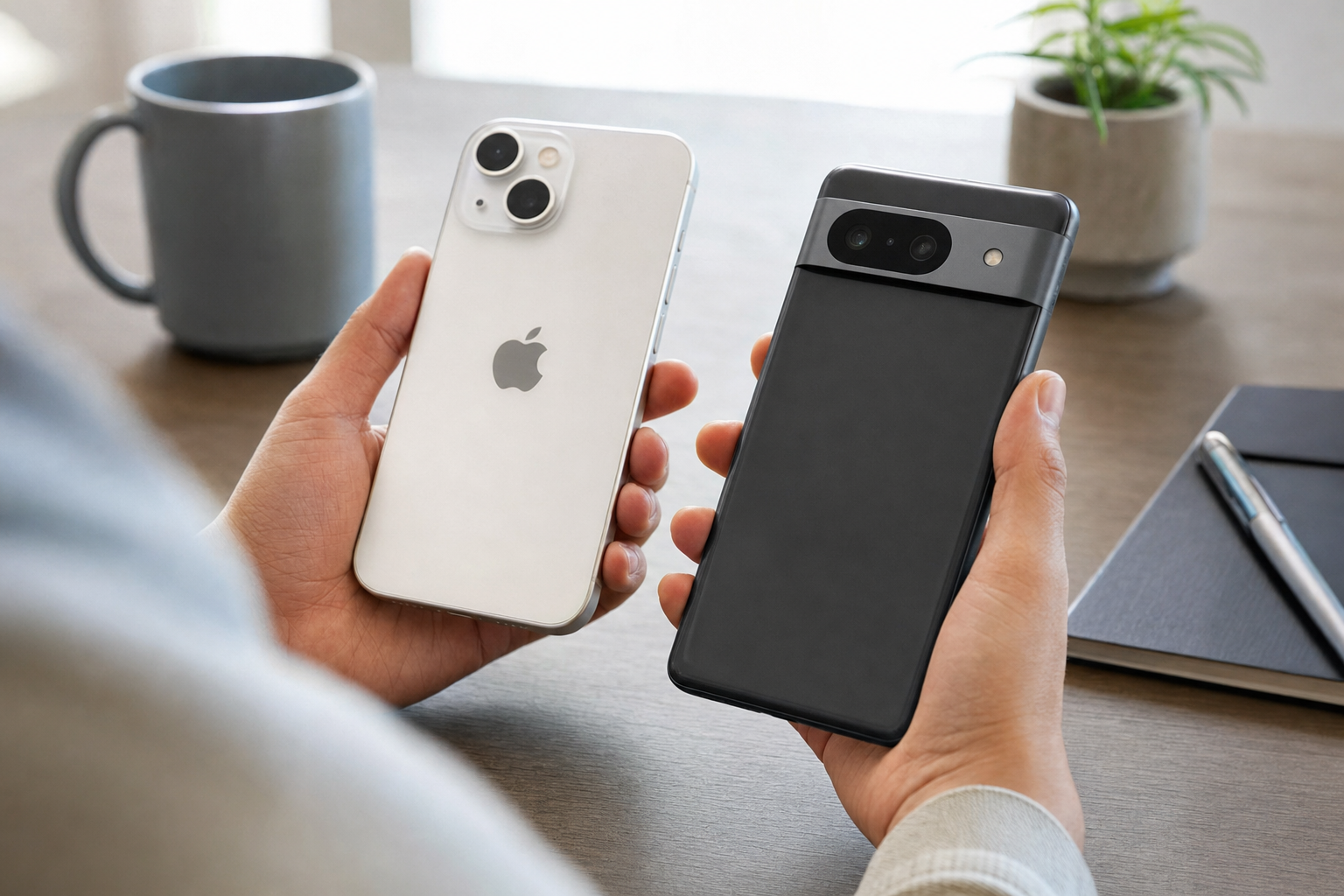
You can transfer passwords and passkeys directly from an iPhone to Android only through Google’s upgraded iPhone-to-Android transfer process on eligible Android 17 devices. The supported models currently include Pixel 8 devices and newer, Samsung Galaxy Z Flip 8 and Samsung Galaxy Z Fold 8. The classic cable and wireless Android Switch methods do not copy passwords or passkeys. Keep the iPhone signed in, charged and available until you have tested important accounts and recovery methods on Android.
Identify the transfer method your Android phone can use
The presence of a cable, a QR code or the Android Switch app does not by itself mean that credentials will transfer. Google offers an upgraded process and classic processes, and only the upgraded process includes passwords and passkeys.
| Your situation | What to do | Credential result |
|---|---|---|
| Pixel 8 device or newer running Android 17 | Start the iPhone transfer during Android setup and look for the upgraded QR pairing process. | Passwords and passkeys are supported. |
| Galaxy Z Flip 8 or Galaxy Z Fold 8 running Android 17 | Use the upgraded setup process offered on the phone. | Passwords and passkeys are supported. |
| Updated Pixel 9 device or newer, Galaxy Z Flip 8, Galaxy Z Fold 8 or another supported model after setup | Open Settings, then Accounts and backup, and check whether a data-transfer option is available. | The upgraded transfer may be available after setup. |
| Older Android phone or a phone without the upgraded process | Use the normal data transfer, then migrate credentials separately. | Classic transfer does not copy passwords or passkeys. |
| Passwords already saved in a cross-platform password manager | Install the same password-manager app on Android and sign in to the same account. | Items should appear when the vault has synchronized. |
Google’s guide to copying data from an iPhone or iPad to Android confirms that the upgraded Android 17 process supports passwords and passkeys, while the classic cable and Android Switch app methods do not. On an eligible phone, a QR code appears immediately after you choose to copy data from an iPhone or iPad. If you do not receive that upgraded workflow, treat the transfer as a classic one and use a fallback for credentials.
Post-setup transfer is more limited than transfer during first-time setup. Google lists updated Pixel 9 devices and newer, the two supported Samsung foldables and select other devices. If no transfer option appears in Settings, do not assume that installing Android Switch will add password or passkey support.
Prepare the iPhone and account recovery options
A successful transfer is helpful, but it is not an account-recovery plan. Before you begin, make sure the iPhone can still receive calls, text messages and sign-in approvals. Do not move your mobile number away from the iPhone until you have working alternatives for accounts that rely on it.
- Update both phones. Install the latest available iPhone and Android software updates. Update Android Switch if the setup process asks you to do so.
- Confirm iCloud Keychain synchronization. On the iPhone, open Settings, tap your name, tap iCloud, tap See All next to Saved to iCloud, then tap Passwords & Keychain. Turn on Sync this iPhone if it is off.
- Review Apple Passwords. Open the Passwords app and review important entries, passkeys and verification codes. Give particular attention to your primary email, financial accounts, mobile carrier and password manager.
- Protect the Apple Account. Confirm that you know the Apple Account password and still control a trusted telephone number. You can add or review a recovery contact at Settings, your name, Sign-In & Security, then Recovery Contacts.
- Prepare critical services. Add a recovery email address or telephone number where the service permits it. Download backup codes for accounts that offer them and store the codes in a protected place that does not depend only on the iPhone.
- Charge and unlock both devices. Check that the Android phone has adequate storage. Keep both phones near each other and connected until the transfer reports that it has finished.
Move authenticator apps separately. A password transfer does not guarantee that app-based two-factor authentication records or every verification code will move. If you use Microsoft Authenticator, follow a dedicated Microsoft Authenticator migration process. For another authenticator, use its own encrypted backup or transfer feature, or add the new phone from each account’s security settings before removing the old one.
Also separate Sign in with Apple from ordinary saved passwords. A service accessed this way may not have a site password available to export. On Android, use the service’s existing sign-in option or its account-recovery process. While you still have access, check whether the service allows you to add another sign-in method.
Use the upgraded Android 17 transfer process
Hypothetical example one: Maya is moving from an iPhone to a new Pixel 10 running Android 17. Because the Pixel has not yet been set up, she should use the upgraded transfer process rather than create a password file.
- Turn on the Android phone and continue through the opening setup screens.
- When asked whether to copy apps and data, select iPhone or iPad.
- Check for the QR code that appears immediately after that choice. On an eligible device, this starts the upgraded pairing process.
- Use the iPhone camera to scan the QR code, then follow the connection prompts on both devices.
- Choose the Google Account carefully. Data transferred from the iPhone, including credentials, is associated with the Google Account selected during setup.
- On the data-selection screen, select Passwords & Passkeys. Review the remaining categories rather than automatically copying every item.
- Continue with the on-screen wireless or cable instructions. If the iPhone asks for connection permission during a cable transfer, tap Trust.
- Leave both devices connected until Android confirms that copying has finished. Being able to continue setup, or receiving an eSIM prompt, does not mean every selected category has completed.
If the Android phone has already been configured, install any pending system updates and then check Settings, Accounts and backup for the transfer feature. If it is unavailable and the phone contains no important data, you may decide to back up its contents, reset it and repeat the transfer during initial setup. Otherwise, use one of the credential-migration options below.
If no QR code appears at the start, continue only if you still want the data supported by the classic process, such as contacts, photos or messages. A later QR code used to download Android Switch is not confirmation that passwords and passkeys will be copied.
Move credentials safely when the Android phone is unsupported
Hypothetical example two: Daniel is moving from an iPhone to an older Android 16 phone. A cable can move contacts and photos, but it cannot move Apple Passwords or passkeys through the classic Android transfer. He needs a password-manager migration for passwords and an account-by-account plan for passkeys.
Use an existing cross-platform password manager
If your logins are already held in 1Password, Bitwarden, Dashlane or another cross-platform manager, install its official Android app and sign in to the same account. Unlock the vault using its master password, recovery key or required second factor, then wait for synchronization to finish before changing autofill settings.
In Android Settings, search for Passwords, Passkeys, Autofill service or Preferred service; the exact label varies by manufacturer. Select the intended provider. In Chrome, open Settings, Autofill and passwords, then Autofill settings. If necessary, select the option to use another autofill service and restart Chrome when prompted.
Export passwords from Apple Passwords
If Apple Passwords is your main vault, an iPhone can export website and app passwords to a comma-separated values, or CSV, file. Apple’s password export instructions for iPhone use Settings, Apps, Safari, Export, then Passwords. Save only the password export, then import that file using the official import tool for your chosen Android password manager.
The CSV file is unencrypted plaintext. Anyone who gets the file can read its contents. Do not email it, upload it to shared storage or leave it in Downloads. After confirming that the destination vault contains the imported passwords, delete the file and remove it from Recently Deleted or the trash.
A CSV export is for passwords, not a universal passkey migration. Apple says that Wi-Fi passwords, certain shared passwords and Sign in with Apple account passwords cannot be exported. Some password-manager apps may offer their own secure password-and-passkey transfer feature. Use it only when both the source and destination provider present that option in their official apps, and follow the provider’s instructions rather than assuming all managers are compatible.
Replace passkeys that remain on the iPhone
For a site that still has only an iPhone passkey, choose an option such as Use a different phone or tablet or Passkey from another device on the Android sign-in screen. Scan the displayed QR code with the iPhone and approve the sign-in there. Once signed in, open the account’s security settings and add a new passkey through Google Password Manager or your chosen Android credential provider.
This depends on the service allowing another passkey. If it does not, use another available method, such as a password, backup code, security key or the account’s recovery process. Do not remove the iPhone passkey until the replacement passkey has completed a separate sign-in successfully.
Check the new vault and resolve problems
Open the intended password manager on Android and verify that it is using the correct account. For Google Password Manager, check the Google Account selected in Chrome or Android’s password settings. For a third-party manager, open the vault directly and confirm that synchronization has finished.
- Credentials are in the wrong Google Account: inspect each Google Account signed in on the phone before attempting another transfer. Repeating a transfer can create confusing duplicates.
- Passwords arrived but passkeys did not: use the iPhone for cross-device sign-in where available, then create replacement passkeys in the Android provider.
- Autofill offers the wrong vault: change Android’s preferred credential service, then check Chrome’s autofill setting and restart Chrome if requested.
- An imported password is difficult to find: search by website domain, app name, username and email address. Imported labels may differ from those used in Apple Passwords.
- Duplicate entries appear: compare domains and usernames before deleting anything. Entries may represent different accounts, regional sites or a password and passkey for the same service.
- A site still asks for a code: move the authenticator entry, use a verified email or text method, or enter a backup code. Password migration does not transfer every second factor.
Test ordinary passwords in both an app and Chrome. For an important passkey, make a fresh sign-in after temporarily turning off the iPhone or moving it away. This helps confirm that Android is using the intended credential provider rather than silently relying on nearby-device authentication.
Keep the iPhone until the move is genuinely complete
If the iPhone is already unavailable, first look for another trusted Apple device signed in to the same Apple Account with iCloud Keychain enabled, or recover the vault through the cross-platform password manager you used. If neither exists, recover accounts through their official recovery pages, starting with your primary email, mobile carrier, Apple Account, Google Account, financial services, workplace account and password manager.
Before erasing, trading in or giving away the iPhone, confirm all of the following:
- Your intended password manager is selected as Android’s credential provider.
- Passwords and passkeys appear under the correct Google Account or third-party vault.
- You have completed new sign-ins to primary email, Apple Account, Google Account, bank, carrier, workplace and social accounts.
- At least one recovery method works without requiring approval from the old iPhone.
- Authenticator records, backup codes and hardware security keys have been checked.
- Sign in with Apple accounts have a working Android sign-in route or another recovery method.
- Passkeys remaining only in iCloud Keychain have been deliberately retained on another Apple device or replaced.
- Any plaintext CSV export has been deleted after import.
- Your phone number and eSIM work on the new device. If needed, complete the iPhone to Android eSIM transfer before retiring the old phone.
Only after these checks should you erase the iPhone through Settings, General, Transfer or Reset iPhone, then Erase All Content and Settings. If a critical account still depends on a passkey, prompt or code held only on the iPhone, leave the phone unchanged until that account is secured.


