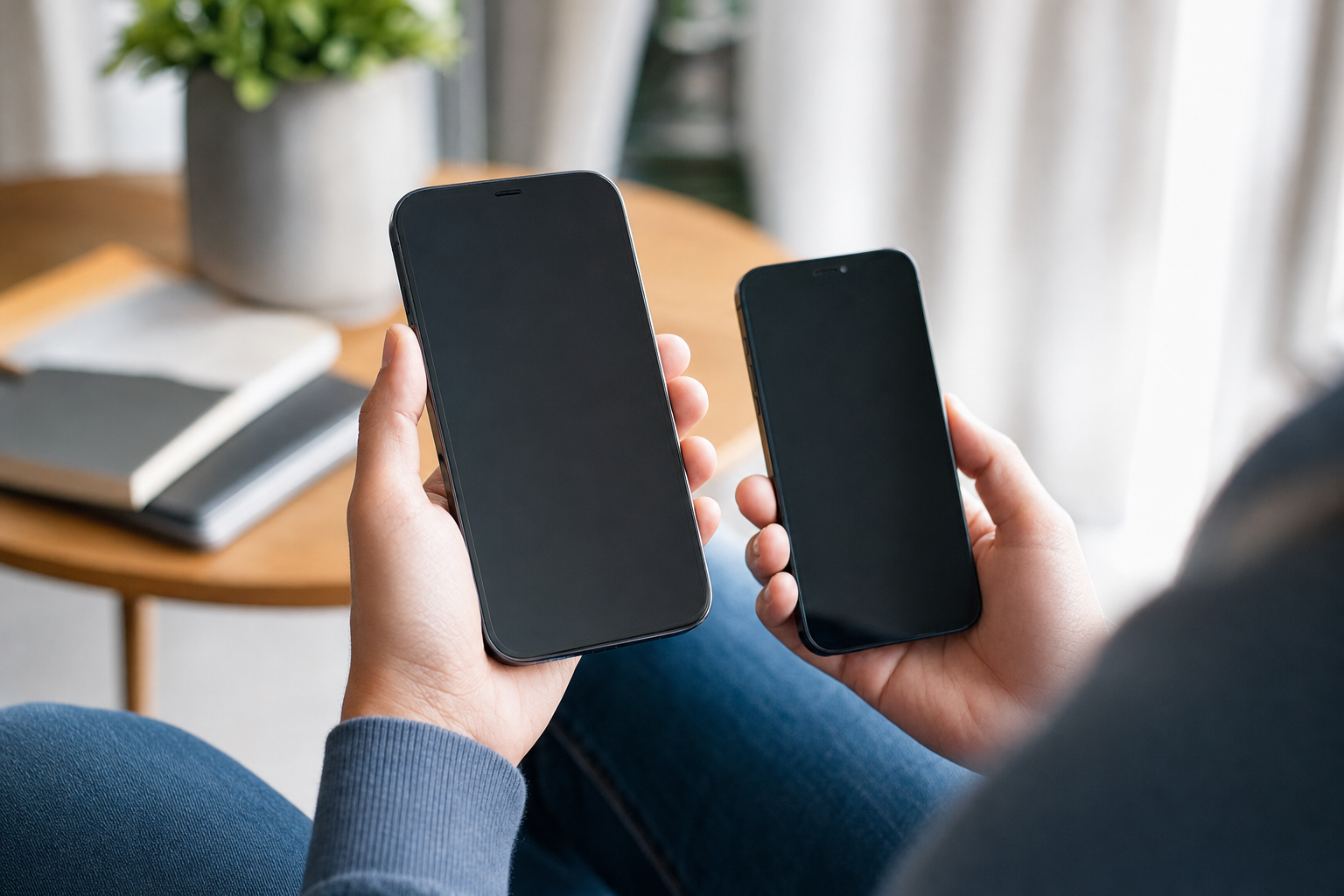
iPhone Handoff lets eligible T-Mobile customers in the United States use one phone number on two iPhones and switch the active phone by unlocking the one they want to use. Both iPhones cannot be active on the cellular network at the same time, so this is not a way to make two phones ring simultaneously. You need two iPhones running iOS 27 or later, Wi-Fi, the same Apple Account on both devices, Messages in iCloud, matching iMessage and FaceTime sign-ins, and an eligible T-Mobile eSIM.
Check whether your iPhones and account qualify
iPhone Handoff is a cellular feature introduced with iOS 27. It is different from Apple’s older Continuity feature called Handoff, which lets you continue tasks such as browsing a webpage or drafting an email on another Apple device.
It is also different from a normal eSIM transfer. A standard transfer moves a cellular plan to another phone and deactivates it on the original device. iPhone Handoff instead creates a main-and-secondary-iPhone arrangement for one number, allowing the active number to move between the two phones when you unlock either device.
Before starting, make sure you have the following:
- Two iPhones running iOS 27 or later.
- Wi-Fi connections on both iPhones during setup.
- The same Apple Account signed in on both devices.
- Messages in iCloud enabled, so messages can sync between the phones.
- iMessage and FaceTime signed in with the same Apple Account on both devices.
- An eSIM from a carrier that supports iPhone Handoff.
Apple currently lists T-Mobile as the participating carrier for iPhone Handoff in the United States. Do not assume that another brand using the T-Mobile network, including a prepaid or mobile virtual network operator, is eligible. If the setup option is unavailable, ask the carrier whether your number, plan and account support the feature.
Apple notes that carrier fees may apply. T-Mobile announced iPhone Handoff at $5 per month in September 2026. Confirm the current price, taxes and account eligibility with T-Mobile before enrolling.
Set up iPhone Handoff during or after configuration
Choose which device should be your main iPhone before you begin. This should usually be the iPhone you use most often. Apple says that some carrier services, including Caller ID and call forwarding, and carrier account management may be available only on the main iPhone.
During new iPhone setup
- Place the main iPhone beside the secondary iPhone so you can see prompts on both devices.
- Start setting up the main iPhone and follow the onscreen steps.
- At Set Up Cellular, choose Use Number on This iPhone and Another, then tap Continue.
- Review the iPhone Handoff information and complete the prompts on both iPhones.
- If prompted about an Apple Watch, choose whether to migrate it to the main iPhone or keep it paired with the secondary iPhone.
With this route, the newly configured phone becomes the main iPhone and the current phone becomes the secondary iPhone. If you are setting up two new iPhones, complete normal eSIM setup on the phone you want to be the main iPhone. Skip cellular setup on the second phone, finish its configuration, then add iPhone Handoff in Settings.
After both iPhones are set up
- Place the new iPhone beside your current iPhone.
- On the new iPhone, open Settings and tap Cellular.
- Tap Set Up Cellular or Add eSIM.
- Select Use Number on This iPhone and Another, then tap Continue.
- Select an iPhone and tap Continue. Choose Other iPhone to keep the main eSIM on the current iPhone, or This iPhone to move the main eSIM to the new iPhone.
- On the current iPhone, tap Continue, then follow the remaining prompts on both devices.
If you want to move a number permanently rather than use two associated iPhones, use a standard eSIM transfer instead. The procedure is different when moving between platforms; see how to transfer eSIM between iPhone and Android.
Understand what switches and what stays separate
To switch phones, unlock the iPhone you want to use. A Switched to this iPhone message confirms that it is now active. The other iPhone becomes inactive on the cellular network until you unlock it again. Keep a passcode enabled and private on both phones, because a person who can unlock the other iPhone can switch the active number to it.
| Feature | What happens with iPhone Handoff |
|---|---|
| Calls and voicemail | They follow the currently active iPhone. Only one iPhone is active on the cellular network at a time. |
| Messages | iMessage, Rich Communication Services, and SMS or MMS messages follow the active iPhone. Messages in iCloud keeps supported message history synchronized. |
| Find My location | Your Find My location follows the iPhone you are currently using. |
| Third-party apps | Apps follow their own sign-in, synchronization and security rules. Some banking apps may require approval from the existing device. |
| Apple Watch | The watch stays paired with its selected iPhone and does not switch automatically. |
| Apple Wallet | Payment cards added during setup can work on both iPhones. Certain transit passes, IDs and corporate badges may work on only one device at a time. |
| Dual SIM | Eligible Handoff eSIMs switch together when you unlock the other iPhone. |
Pair an Apple Watch with the iPhone you use most. If the watch is away from that paired iPhone, it can connect through Wi-Fi or its own activated cellular plan. Without either connection, calls, messages, notifications and some features that rely on the paired iPhone may be unavailable.
You can add payment cards to Wallet during setup, and Apple says they work on both phones. You can add a compatible car key after setup and share it between the devices. Check issuer rules for each transit pass, digital ID or workplace credential before depending on it across both iPhones.
For Dual SIM, both eSIMs must be from carriers that support iPhone Handoff. Set up each number separately, one at a time. Once configured, both eligible eSIMs switch together when you unlock the other iPhone; you cannot leave one Handoff number active on each phone.
Fix setup problems and manage replacements or cancellation
If Use Number on This iPhone and Another does not appear, do not choose a normal eSIM transfer unless you intend to move the number permanently. First check the following:
- Both iPhones are updated to iOS 27 or later.
- Both devices are connected to working Wi-Fi and are close together.
- Both phones use the same Apple Account.
- Messages in iCloud is enabled.
- iMessage and FaceTime use the same Apple Account on both devices.
- Your T-Mobile number, eSIM, plan and account are eligible for iPhone Handoff.
For an eSIM activation error, follow the message shown on the iPhone and any instructions from T-Mobile. If activation still fails, contact T-Mobile from another phone so support can work on the affected line without ending your call.
To replace either iPhone, place the replacement beside the existing Handoff devices. On the replacement, go to Settings, Cellular, then Set Up Cellular or Add eSIM. Select the relevant iPhone, tap Continue, then tap Transfer and follow the prompts. The eSIM deactivates on the iPhone from which it is transferred. If the carrier does not support transfer from a companion iPhone, you must enroll in iPhone Handoff again.
Deleting an eSIM does not necessarily cancel iPhone Handoff. Apple directs users to contact their carrier to turn off the service, and the carrier may continue charging until it receives that request. Ask T-Mobile to confirm cancellation before erasing, selling or trading in either iPhone.
Sources
- Apple Support: Set up iPhone Handoff
- Apple iPhone User Guide: Set up iPhone Handoff on iPhone
- Apple Support: Wireless carrier support and features for iPhone in the United States and Canada
- T-Mobile Newsroom: iPhone Handoff availability and introductory pricing
- Apple Support: Continue tasks across devices with Handoff


