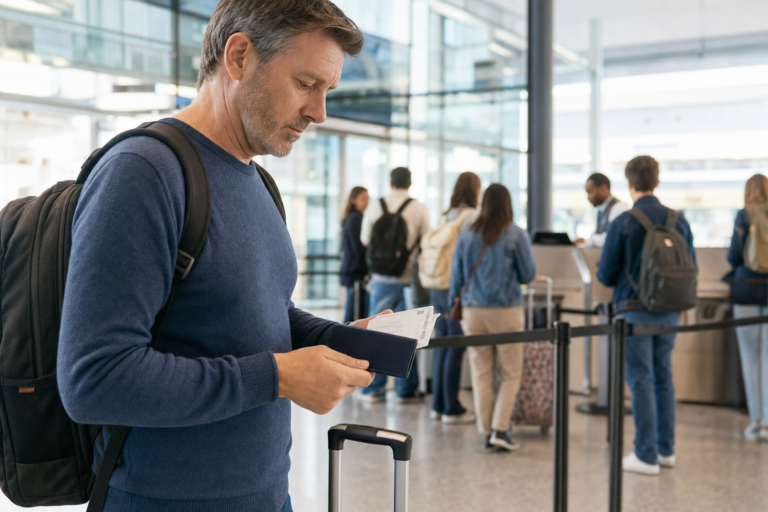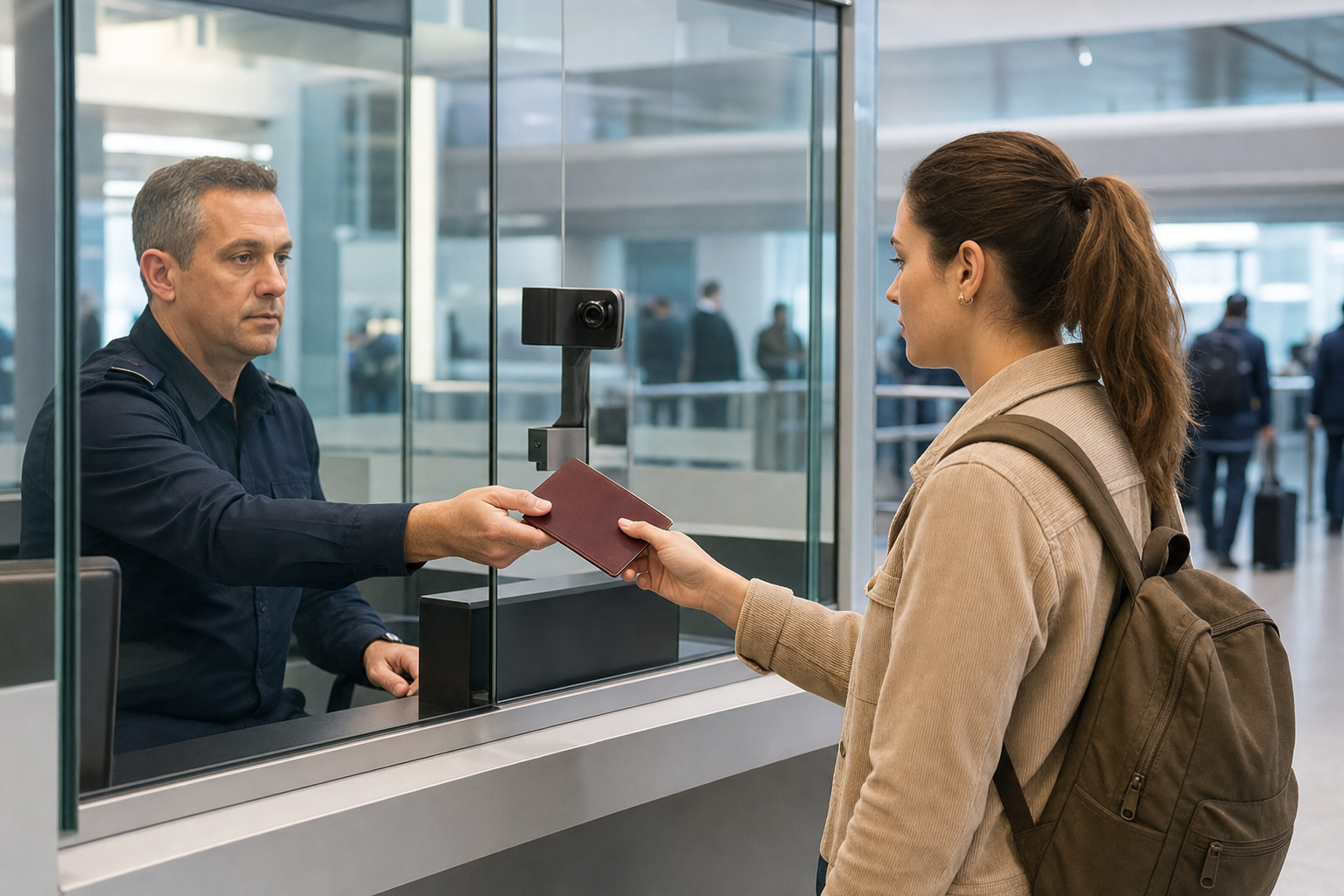
The official Travel to Europe app is optional. It can help eligible travellers pre-register selected information for the European Union Entry/Exit System, known as EES, before reaching a supported border crossing. As of September 13, 2026, it is available when entering Sweden, where it supports passport data, a facial image and an entry questionnaire, and when entering Portugal, where it supports the entry questionnaire. You must still go through border control, present your travel document and follow the border guard’s instructions.
EES has been fully operational at the external Schengen borders of 29 European countries since April 10, 2026. It records the entry and exit of eligible non-European Union nationals travelling for short stays. The app is not an EES application, a travel authorisation or a guarantee of entry or a faster queue. It is simply an optional pre-registration tool available at selected border crossing points.
Check whether you can use the app
Before starting, make sure the app applies to your traveller status, phone and planned border crossing.
- Be subject to EES registration. The app is for non-European Union nationals making a short stay who are subject to EES. It is not for travellers who are exempt from EES registration. This includes non-European Union nationals holding a residence permit or long-stay visa issued by a country using EES, subject to limited exceptions.
- Have a biometric passport. A biometric passport normally has a rectangular chip symbol on its cover. The app needs to read the chip; a passport without one cannot be used for app pre-registration.
- Use a compatible phone. Your phone needs near-field communication, usually called NFC, to read the passport chip, a working front-facing camera and an internet connection. NFC is enabled by default on iPhones; Android users may need to enable it in the phone settings.
- Confirm that your crossing is listed. Availability depends on the country, direction of travel and the individual airport, port or land border crossing. Do not assume that app availability at one crossing means it is available throughout that country.
The iPhone app is listed for iPhone 8 or later and requires iOS 16.7.11 or later. Check the current App Store or Google Play listing before travelling because device requirements can change. Use the official app published by the European Union, not an unrelated app with a similar name.
If you are unsure whether EES applies to you, see whether Americans need to register for EES before travel. For flights with a connection, identify where you will actually cross the external border, as explained in the guide to EES and connecting flights in Europe.
Where the app currently works
EES operates across the 29 countries using the system, but each country decides whether to make the companion app available. The functions currently published for the app are limited:
| Journey | Functions supported in the app |
|---|---|
| Entering Sweden | Passport data, facial image and entry questionnaire |
| Entering Portugal | Entry questionnaire |
Do not expect every screen to appear for every journey. For example, the passport and selfie steps may not be shown when the selected country does not use those app functions. The app itself should show the options available for the country and border crossing you select.
For an arrival journey, select the country where you first cross the external border of the countries using EES. For example, if you fly from the United States to Germany but clear passport control during a connection in Sweden, select Sweden. For a departure journey, select the last EES country you will be in before crossing the external border.
If you stay entirely in an airport’s international transit area and do not pass passport control, you will not be registered in EES for that transit country. Do not create an arrival journey for that transit stop.
Submit your journey within the correct time window
You can begin creating a journey up to seven days before your intended travel date. You can submit it no earlier than 72 hours before that date. Use your expected time at the border crossing, rather than only the departure time of a flight from home.
- Prepare your phone and passport. Make sure NFC is available and enabled, remove any passport cover and use a reliable internet connection. Choose a well-lit place with a plain, light background for the selfie.
- Create a journey. Open the app, confirm that you are eligible, accept the terms and privacy notice, create a personal identification number and select the country, border crossing and expected arrival or departure time.
- Add traveller details. Follow the on-screen instructions. Where available for the selected journey, scan the passport’s personal-details page and then its chip. Check that the captured passport details are correct.
- Read the passport chip carefully. The chip is often in the passport’s back cover, but its location varies. The NFC reader is usually on the back of the phone. Hold the phone against the passport and move it slowly until reading begins, then keep both still until it finishes.
- Take the live selfie if requested. Keep your eyes open and clearly visible, show your whole face from chin to forehead and remove glasses if they prevent the camera from seeing your eyes. The app may flash colours on screen as part of the identity check.
- Complete the country-specific questionnaire. Answer all required questions truthfully. It may ask about travel dates, accommodation or other travel plans. Carry documents that support your answers because a border guard may ask to see them.
- Add co-travellers if necessary. Select the option to add a traveller and repeat the requested steps for each person. The official frequently asked questions say there is no limit to the number of travellers in one journey. Obtain each adult’s consent before entering their data. For a minor, you must be their legal guardian or caregiver.
- Submit the journey. After selecting Done and Finish, return to the journey page and choose Submit the Journey. Saving a draft does not send information to border authorities; unsubmitted drafts are automatically deleted after seven days.
- Wait for confirmation. Confirmation usually arrives within seconds, although it can occasionally take several minutes. It confirms that the system received and accepted the submitted information. It does not mean that entry or exit has been approved.
If the app generates a quick-response, or QR, code, each traveller has an individual code under the Share with officials option. A border authority may ask for it, depending on the country and crossing. Keep the app available, but do not treat the code as a replacement for your passport or for border checks. The app cannot collect fingerprints; any required fingerprints are taken at the border in the presence of a border guard. See when fingerprints may be required under EES.
What to do if the app does not work
Your country or crossing is unavailable. If the required country or border crossing is not listed, the app is not available for that journey. Do not choose a different airport, port or crossing merely to complete the form. Proceed to the correct crossing and complete the normal border process.
The journey cannot be submitted. Check the timing first: submission opens only in the final 72 hours before the intended travel date. Then review every traveller profile for incomplete questions or required steps. If your travel plans change after you create the journey, create a new one.
The app shows an error or rejects the submission. Restart the phone, check the internet connection and install the latest phone software and app version. If the issue continues, use Settings and then Report an issue in the app. You can still travel and complete the regular border checks without successful app pre-registration.
No one asks for the QR code. This is not necessarily a problem. QR-code use depends on the country and border crossing point. Follow local signs and the border guard’s instructions rather than insisting that the code be scanned.
Allow normal time for border control even after a successful submission. The practical benefit depends on your exact crossing and on the functions that the country has chosen to activate.